1. Click "Home"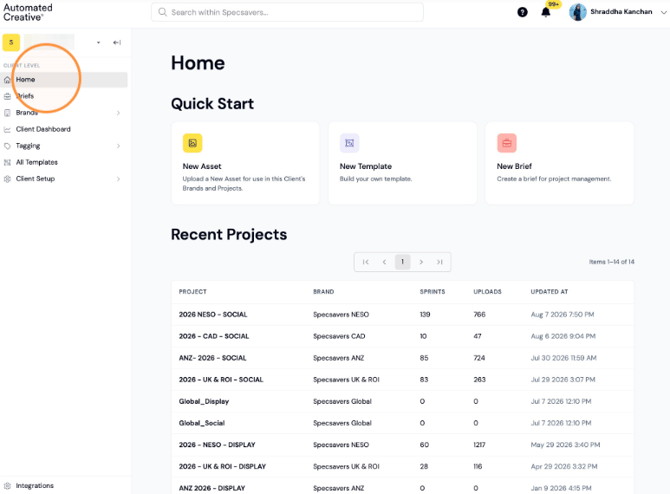
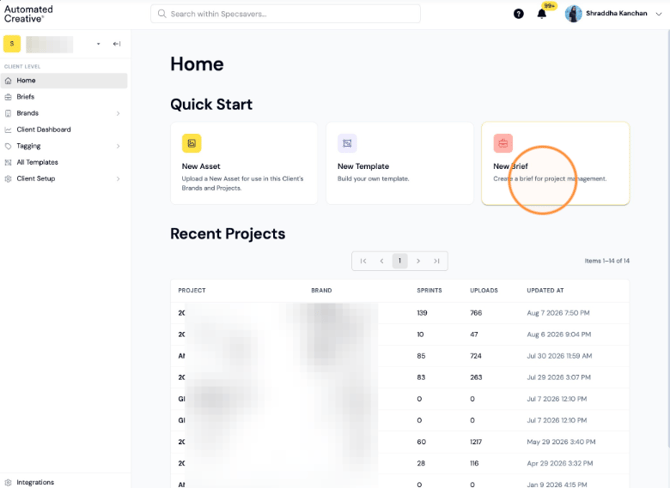
2. Click "New Brief"
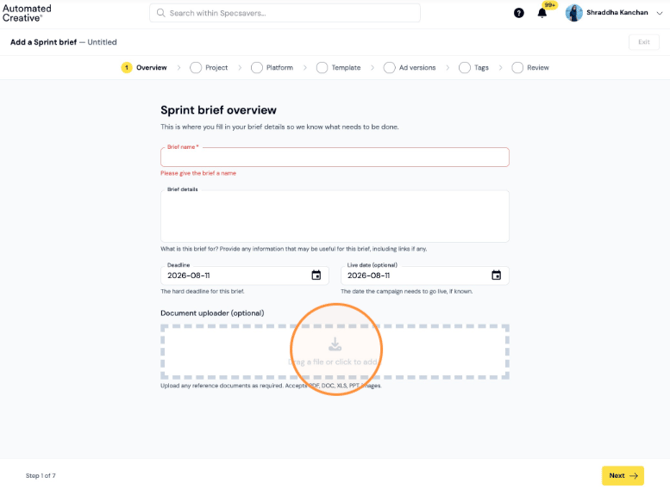
3. Write the "Brief name"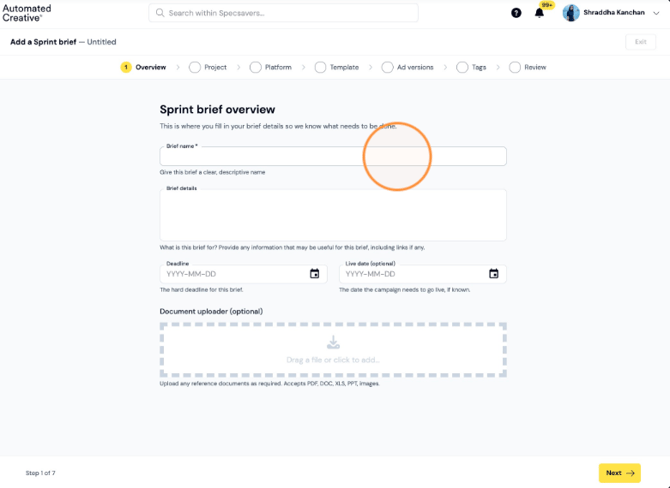
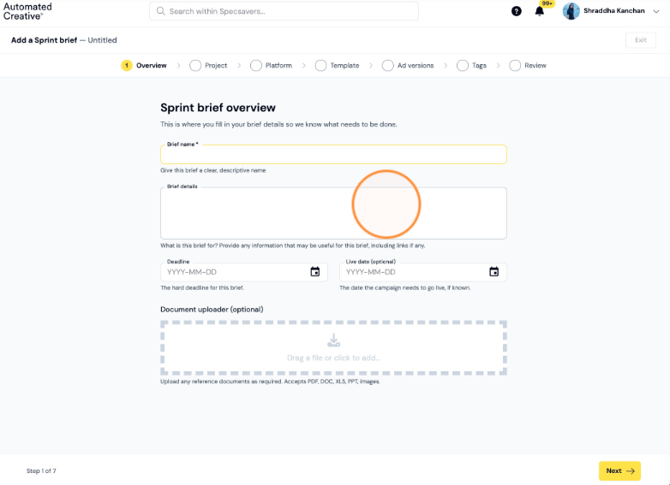
4. You can also add a Brief Description here
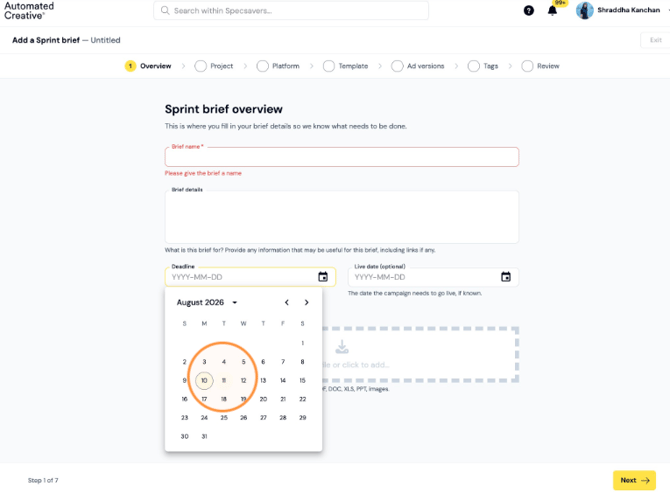
5. Add the Brief deadline
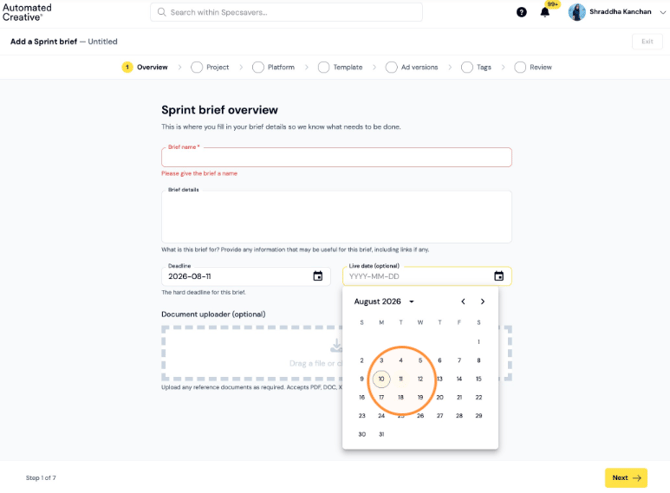
6. Add the campaign live date
7. You can also upload any additional documents to support your brief.
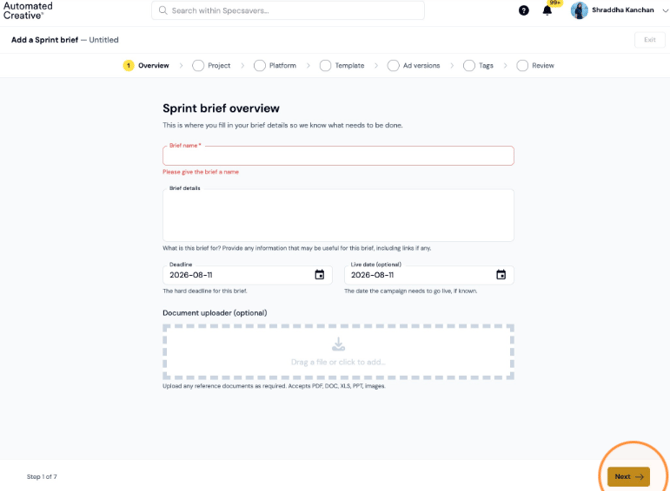
8. Click "Next"
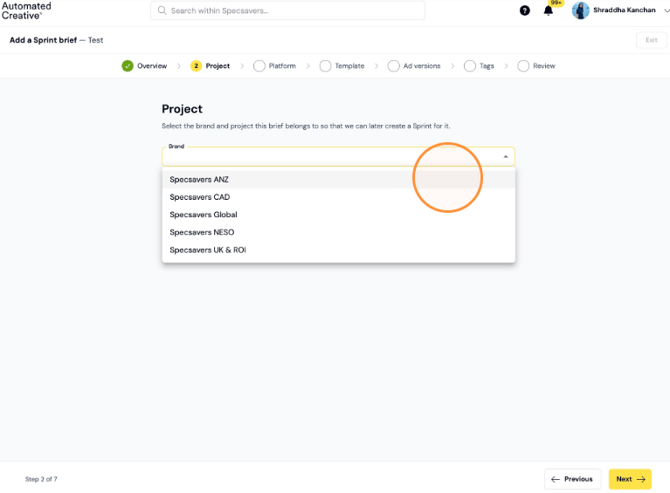
Project Selection
9. Select your Brand
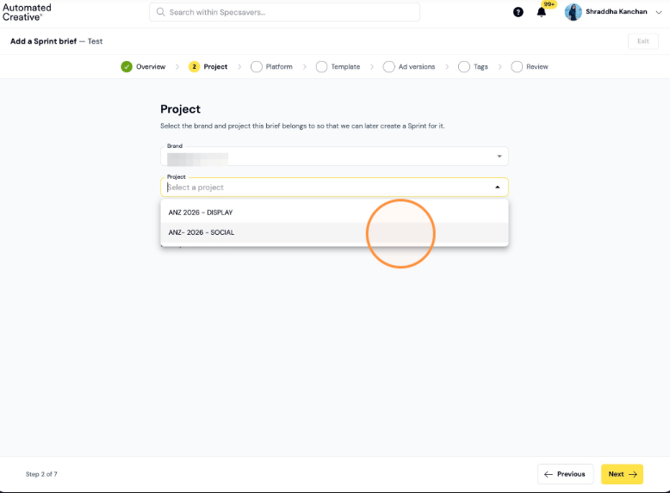
10. Select the Project you would like the brief to be added to.
Platform and Template
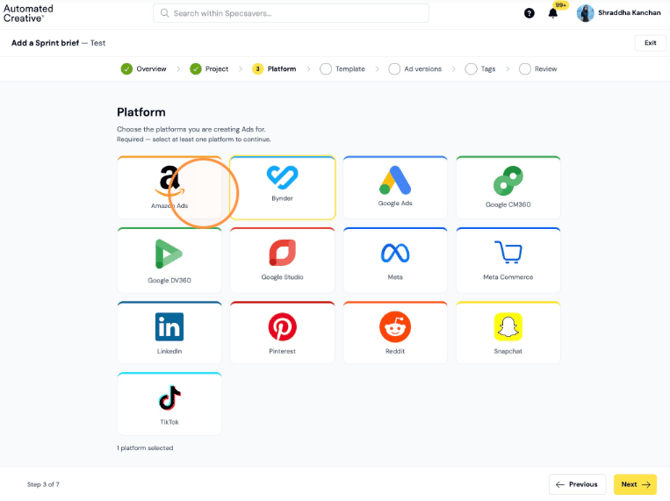
11. Select the platforms you want to build for and click "Next"
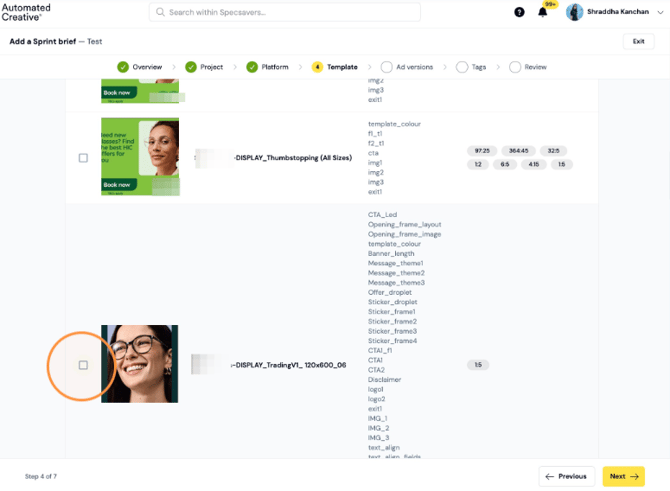
12. Select the template you’d like to link to the brief and click "Next".
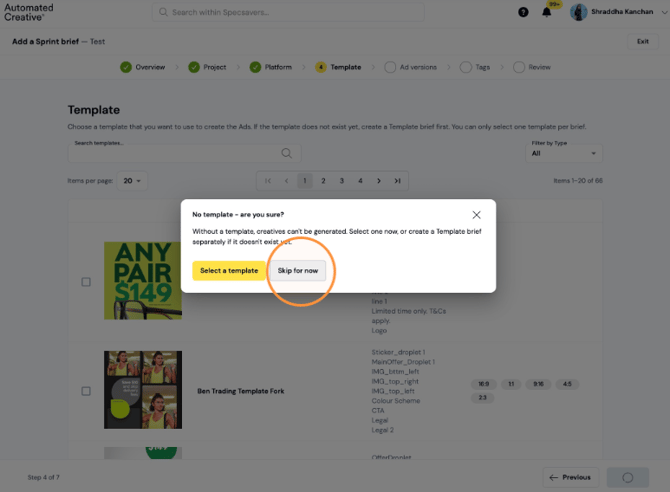
13. If you don’t see a template that fits the brief, or you have a template brief for us to work from, select “Skip for now" and click "Next".
Ad versions and tags
14. Add the versions you would like us to build and set a name for them. If you need to add more than one version, click "add another ad version".
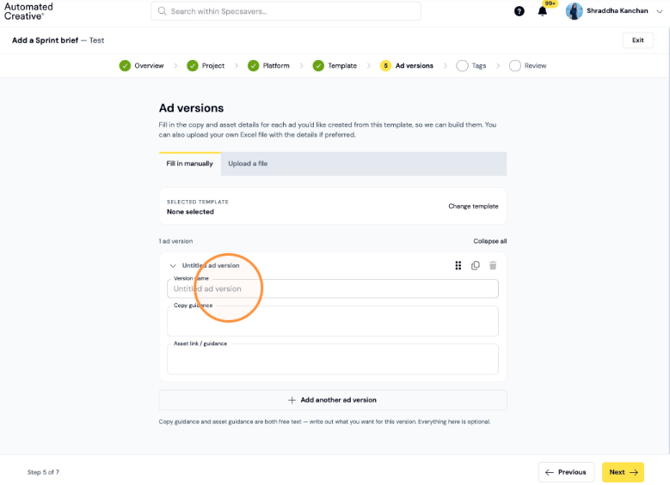
14. Alternatively, you could also click on "Upload a file" to upload ad version reference
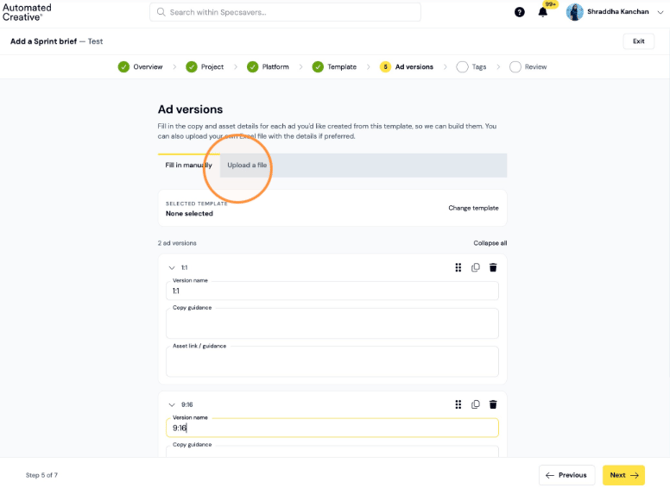
15. Click "Confirm"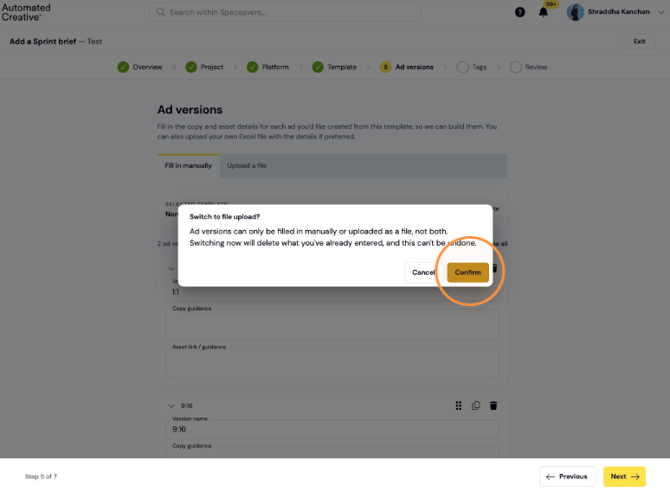
16. Add your files and click "Next"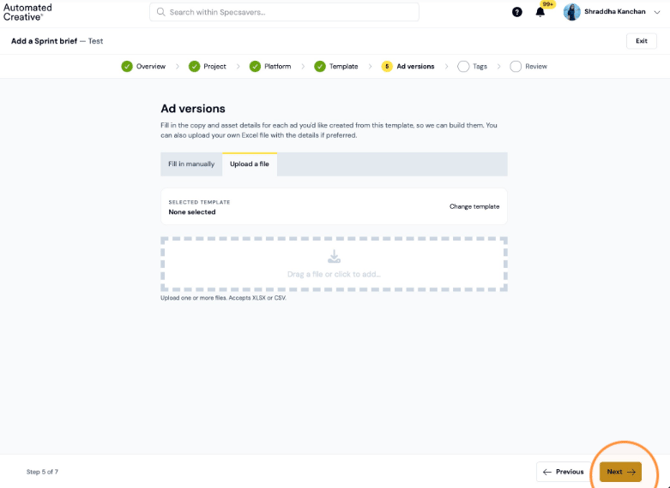
17. Select tags across categories. Note: Universal Tags will always be across all Projects.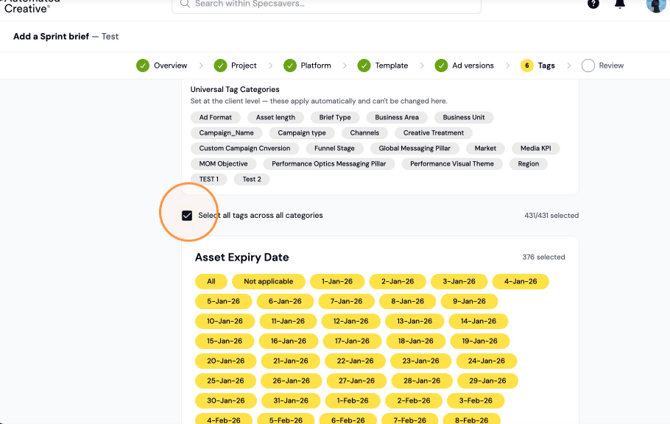
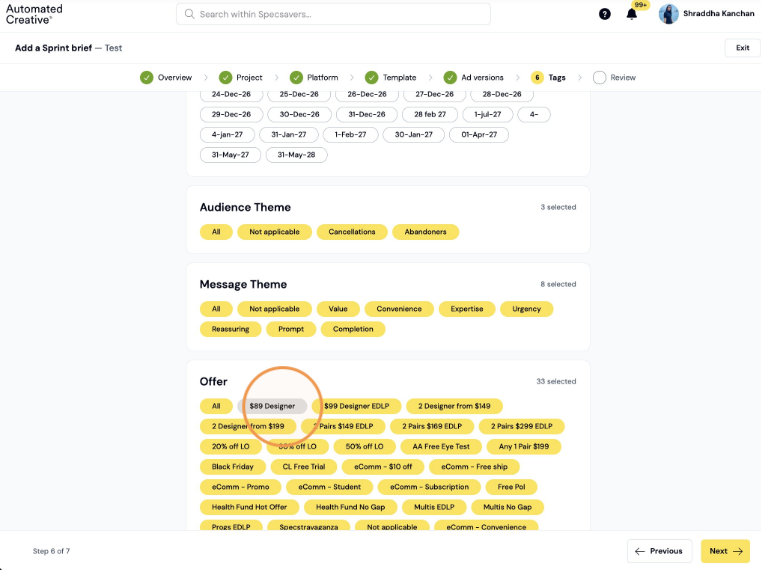
18. You can click “All” if you want to select all tags within the Tag Category.
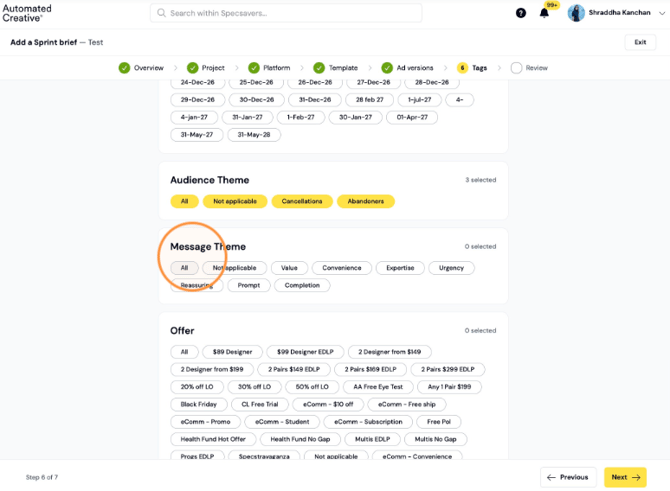
19. Unselect a Tag if you don't want it included in the brief and once you have all the ones you want, click "Next".
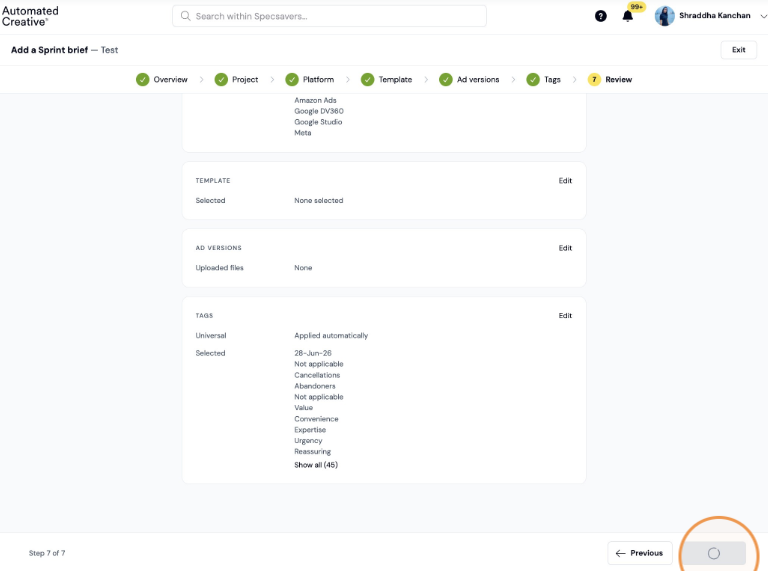
20. Click "Submit Brief"