
Template Configuration
1. Open the template selector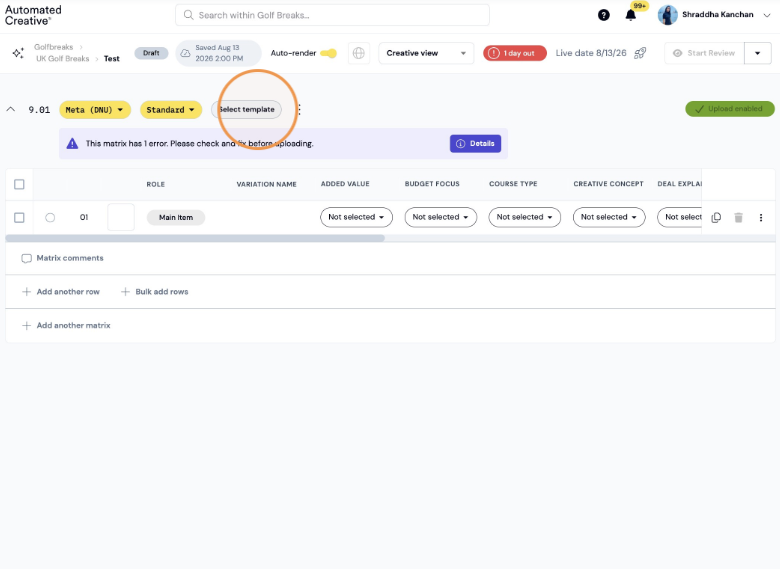
2. Select "No Template" and click "Update"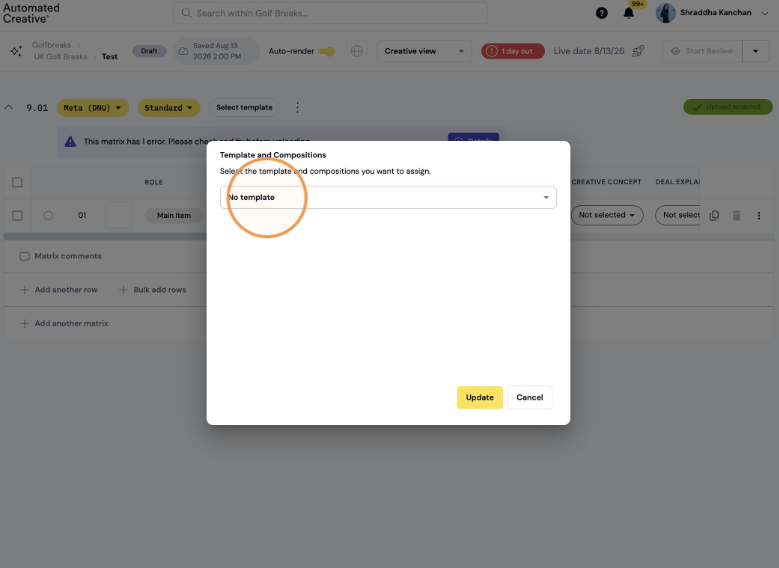
Upload Size Setup
4. Open "set manual upload sizes"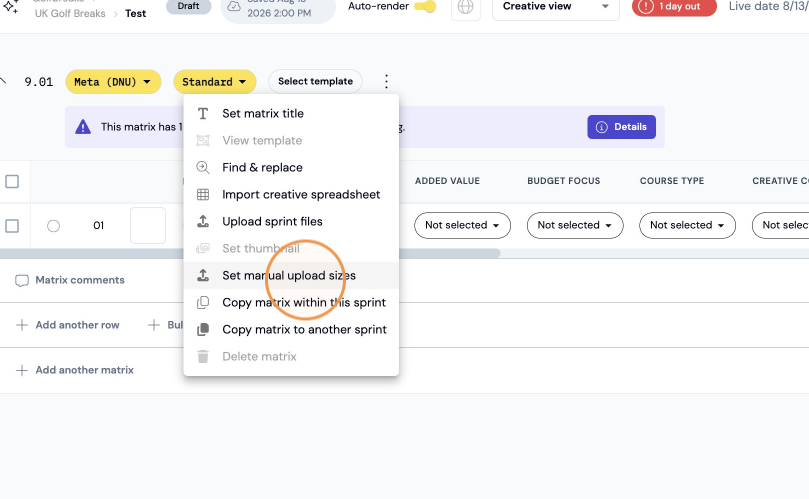
5. Add as many sizes ad you need to upload together in the same ad (example 1x1 & 9x16)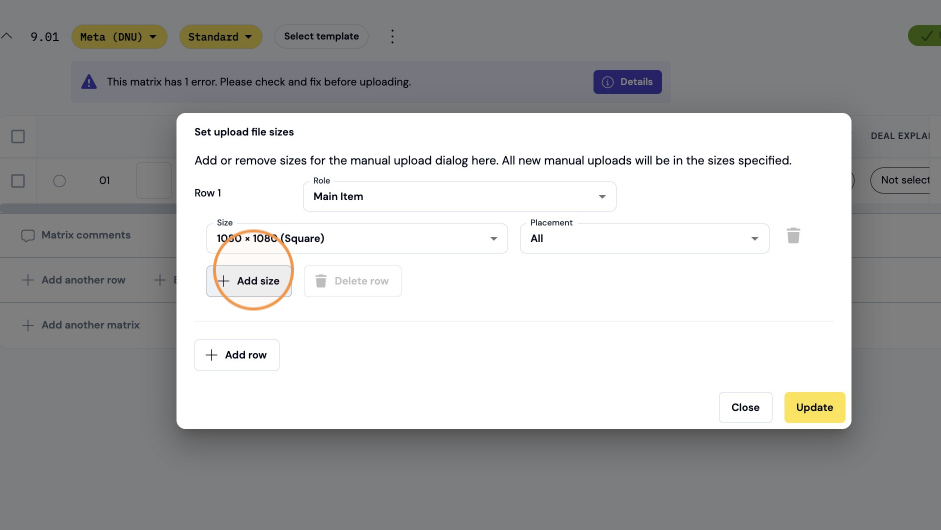
6. Select the sizes you want to upload in and click "Update"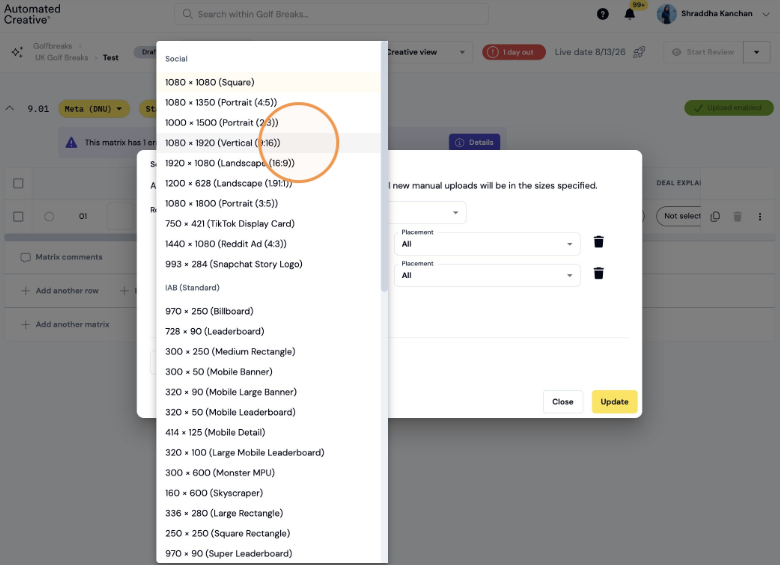
Creative Upload
7. Open the row actions menu
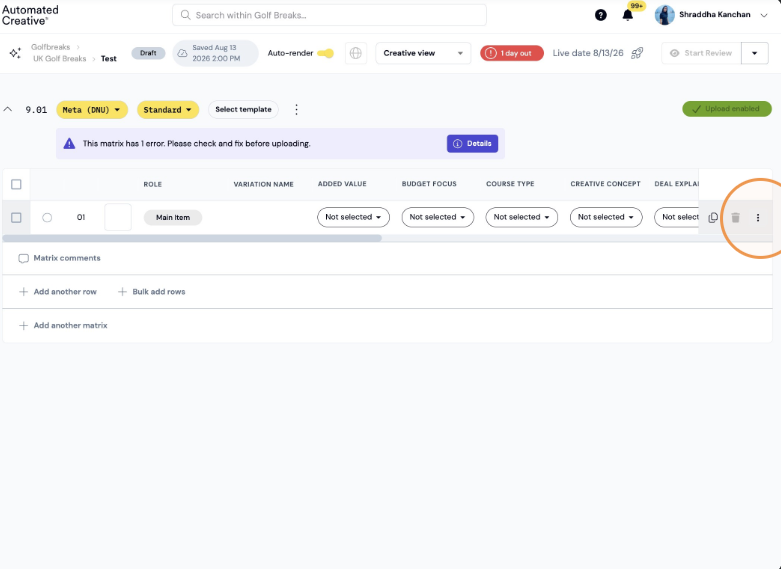
8. Select "Manual Upload"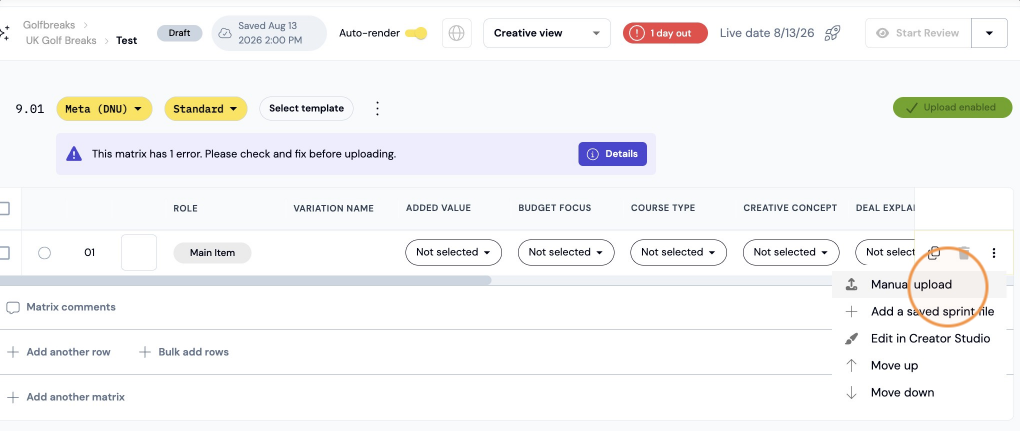
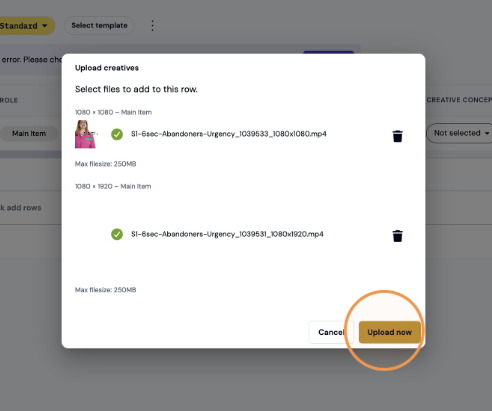
9. Drag & drop your files or click to add to the specific placements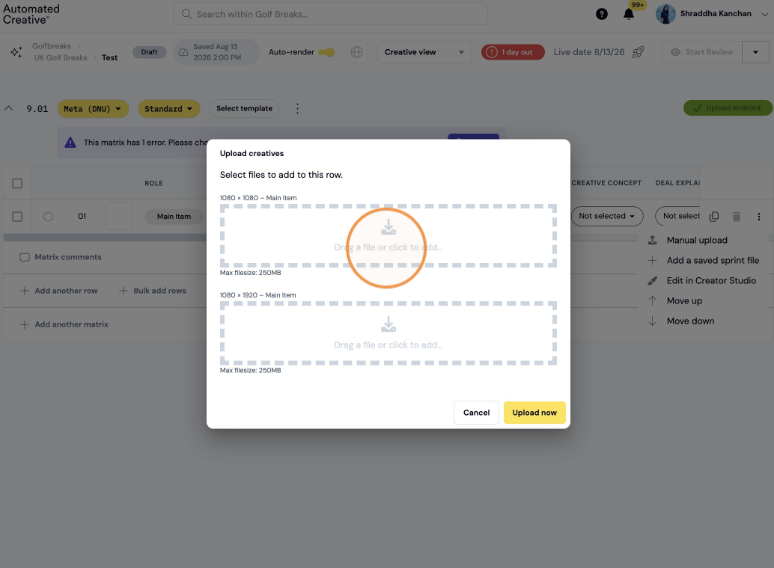
10. Click "upload now"
How to upload Manual Ads for Carousels
1. Click"set manual upload sizes"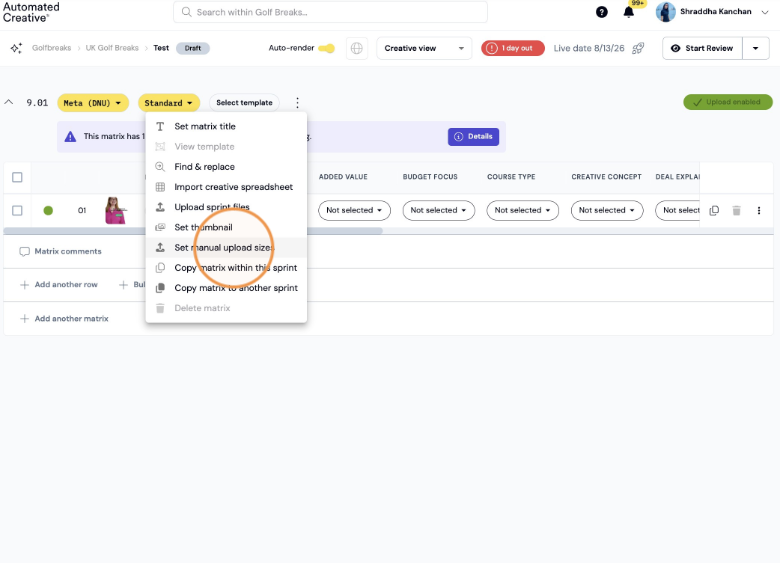
2. Click "main item"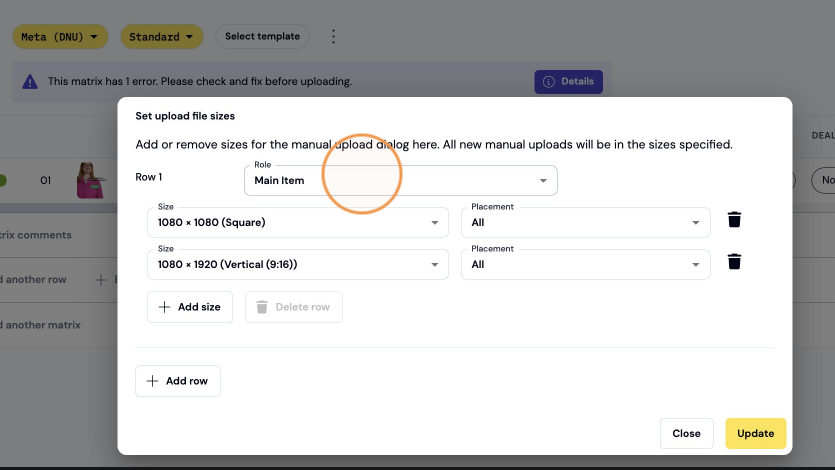
3. Change to "Carousel Pane"
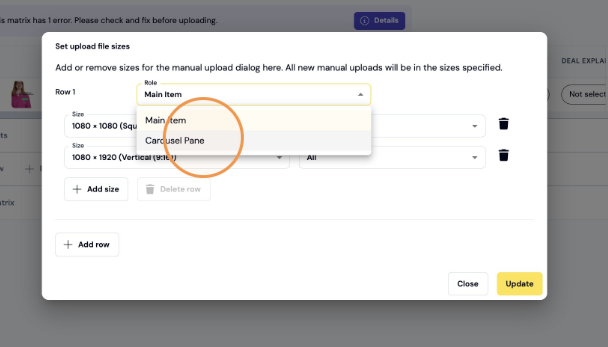
4. Add as many rows as panes/frames you need. You can also add multiple sizes by clicking "add size".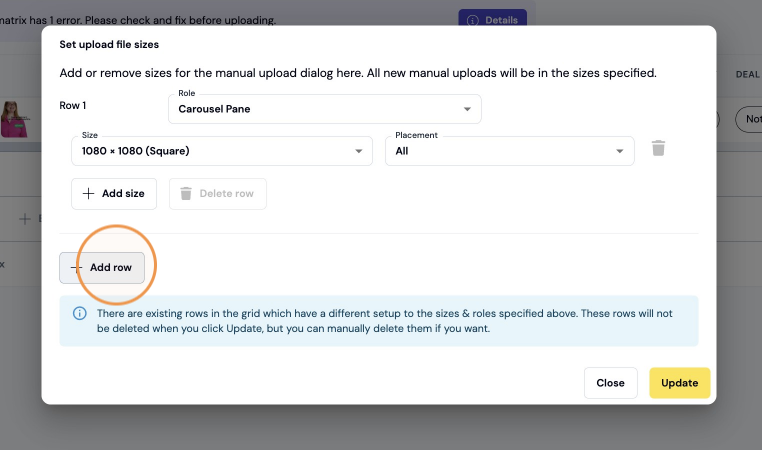
5. Change all your rows from "Main item" to "Carousel Pane"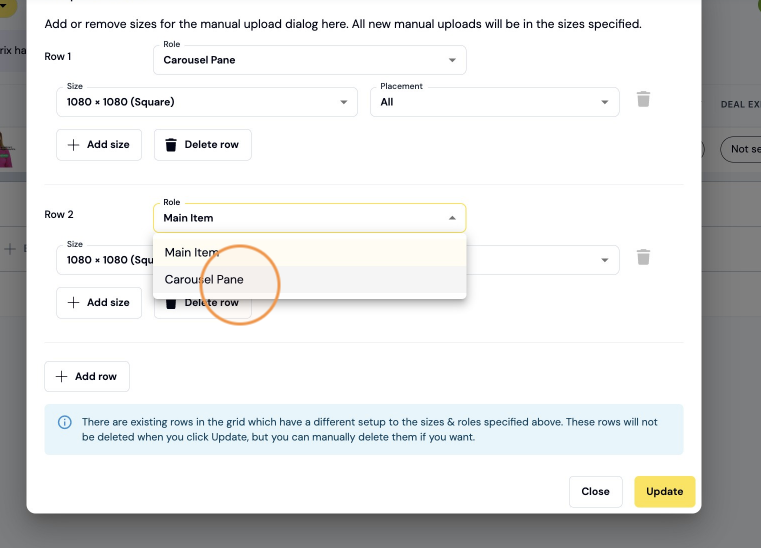
Repeat this step for as many panes as needed.
6. Click "Update"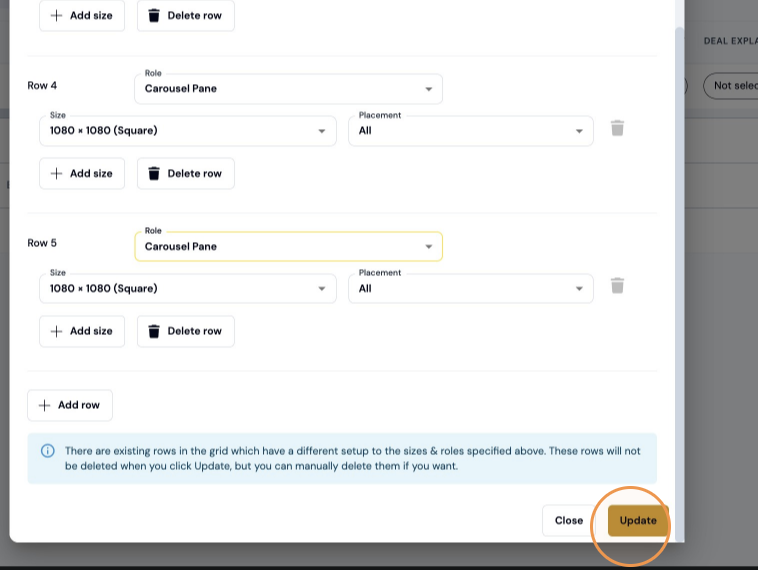
7. Click "add another row"
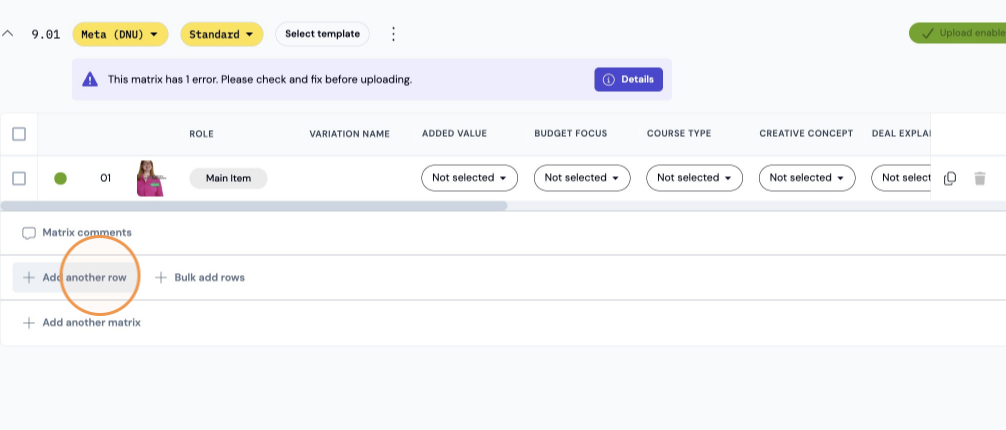
8. Click this icon
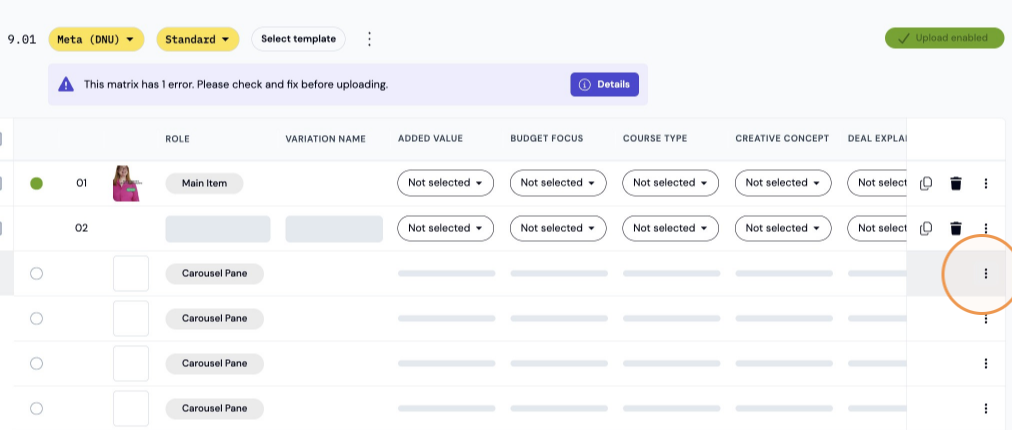
9. Click "manual upload"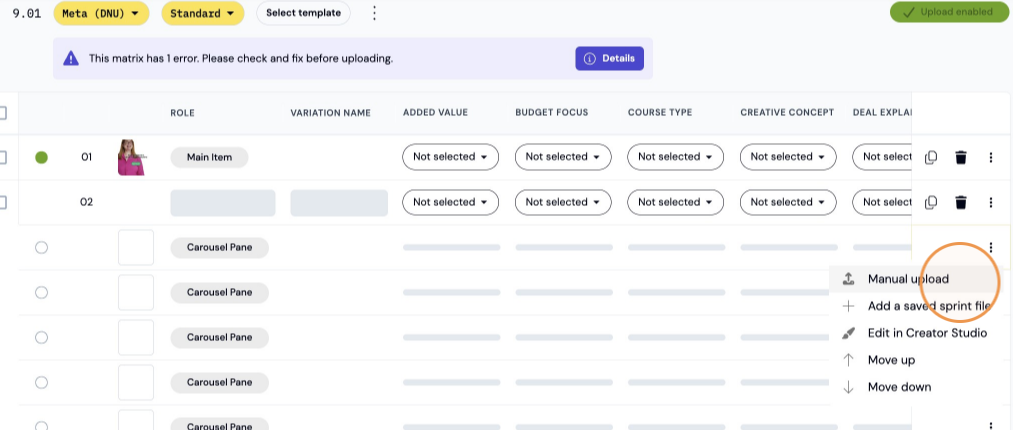
10. Upload your file and repeat the same process for the other rows to upload all your Carousel panes.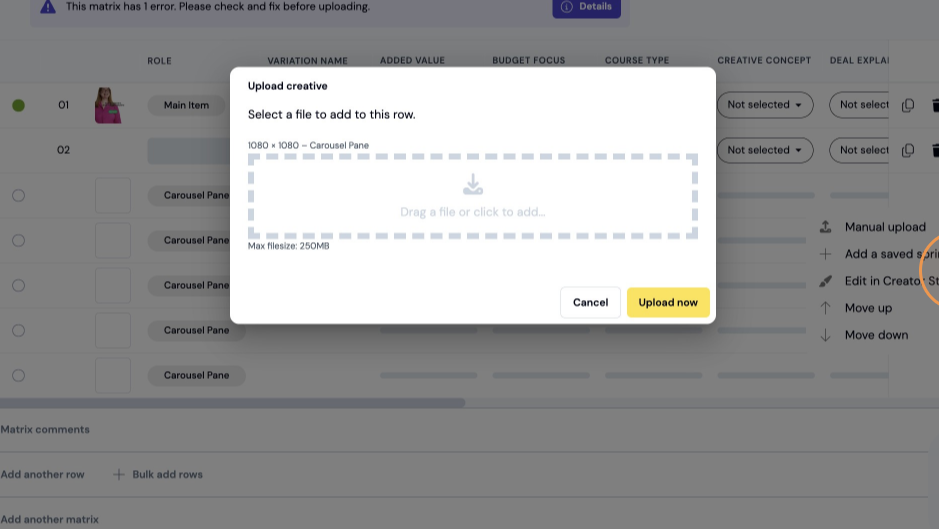
Alert!
Carousels will need to be on different matrices than regular ads. Once you've setup your manual upload sizes and how many panes your Carousel will have, you can add more Carousels to the same matrix by clicking "add another row" and repeating the same process shown above.