
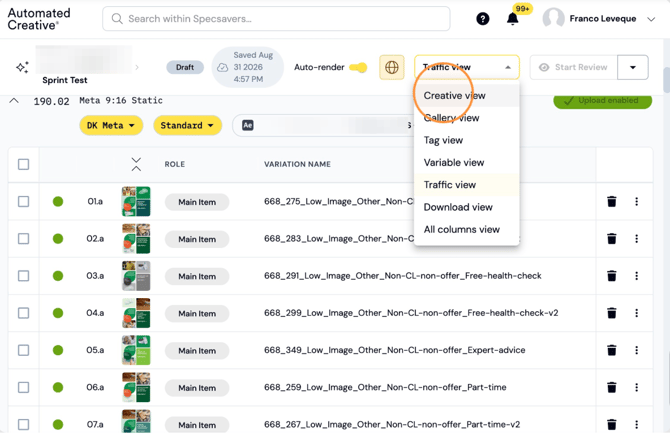
Step 1: Click "Creative view"
Step 2: Show Tags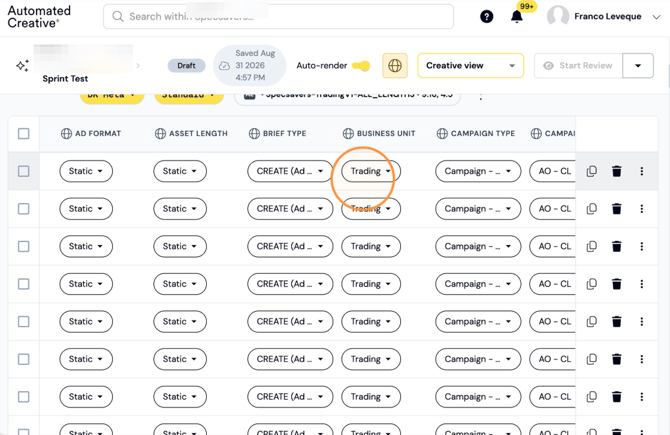
Step 3: And creative variables to edit your template.
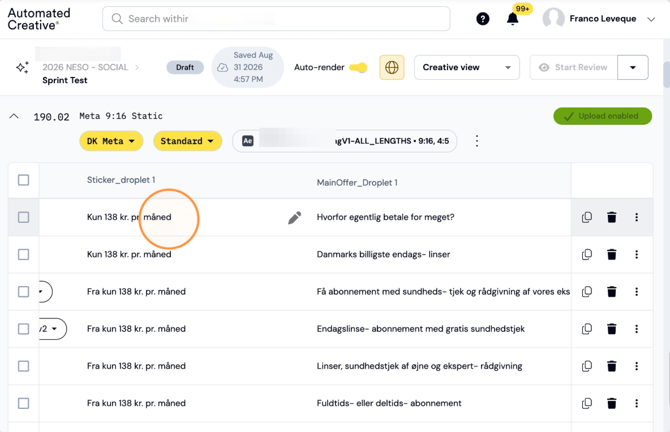
Note: Previews are enlarged for easier creative review.
Step 4: REPLACE IMAGE (GALLERY VIEW NOT WORKING ATM)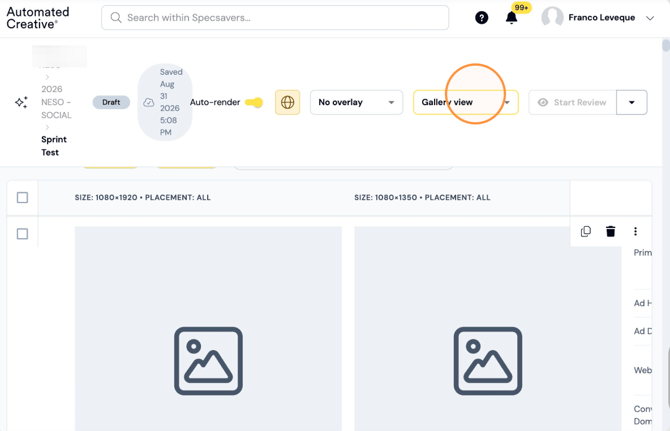
Note: Hides the rest of your Matrix columns and only shows the tags.
Step 5: Click "Tag view"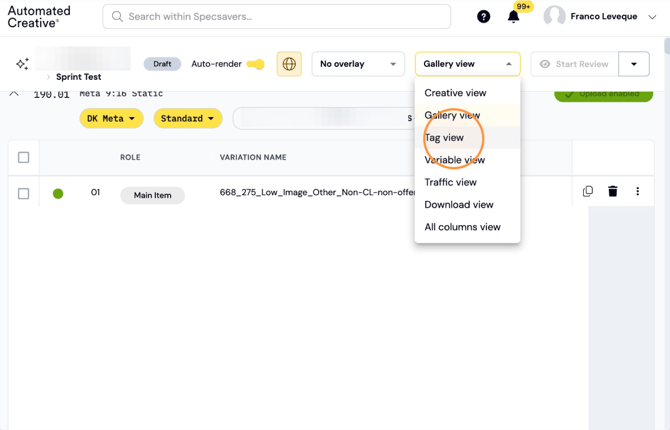
Step 6: Tag your ads.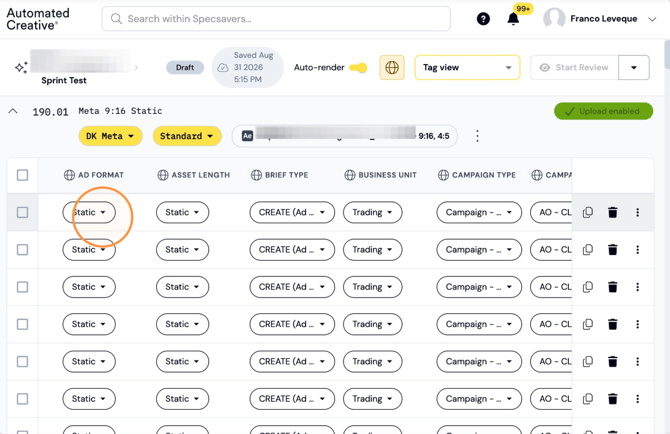
Note: Only shows the variables for the templates, while hiding the rest of the columns.
Step 7: Click "Variable view"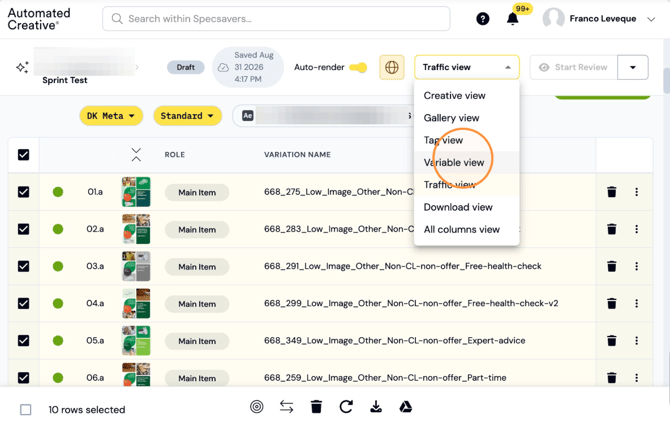
Step 8: Edit text variables to change your ad.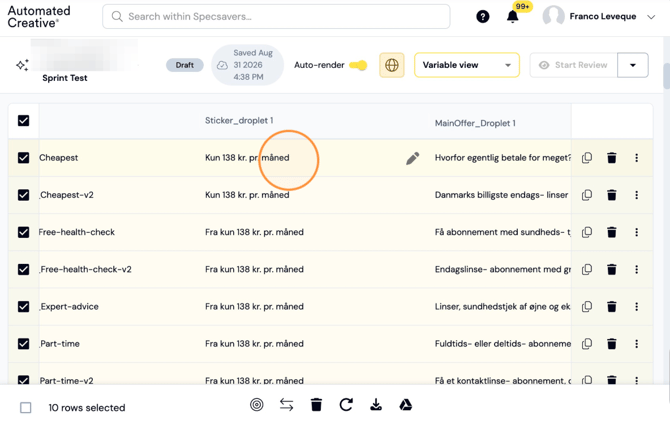
Step 9: Edit Image/Video variables to change your ad.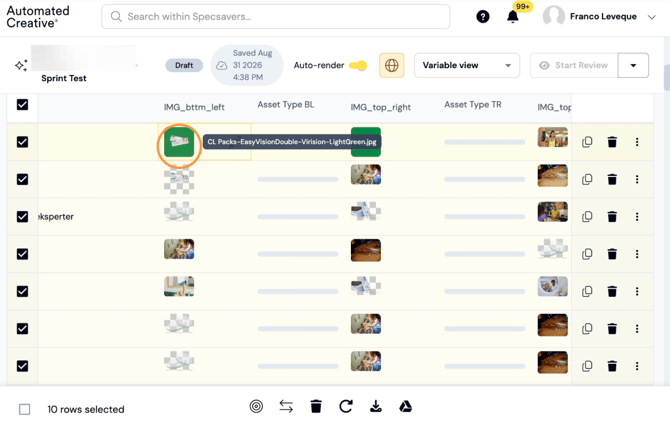
Note: Shows all the fields you need to input to upload your ads (objective, audience, ad name, ad copy, url/utm, cta, etc) to a specific platorm.
Step 10: Click "Traffic view"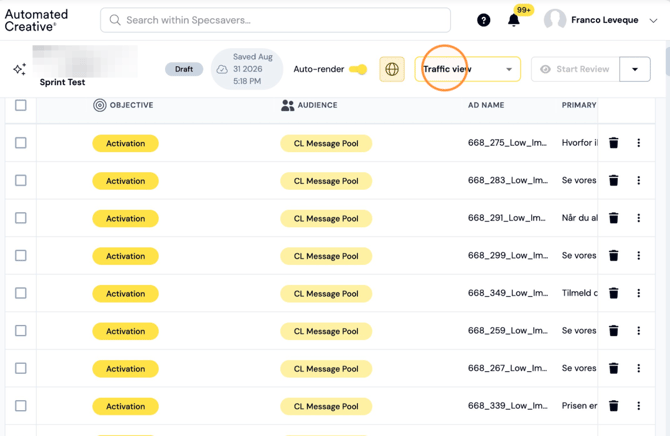
Step 11: Edit all the trafficking info by clicking on the fields or import a trafficking sheet (covered in another guide).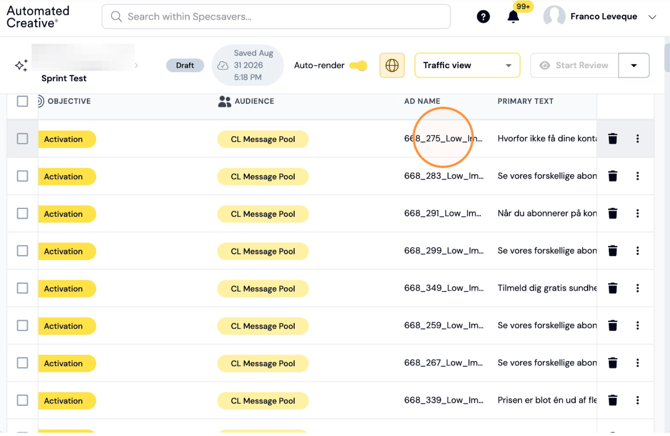
Note: Rename file names for your creatives within the matrix so they download with those names instead.
Step 12: Click "Download view"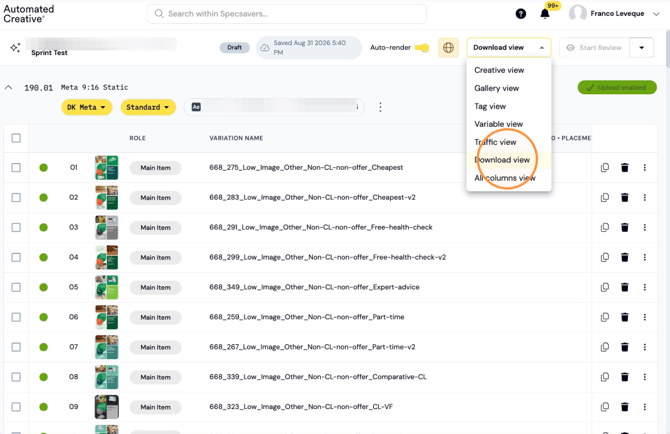
Step 13: Edit names. 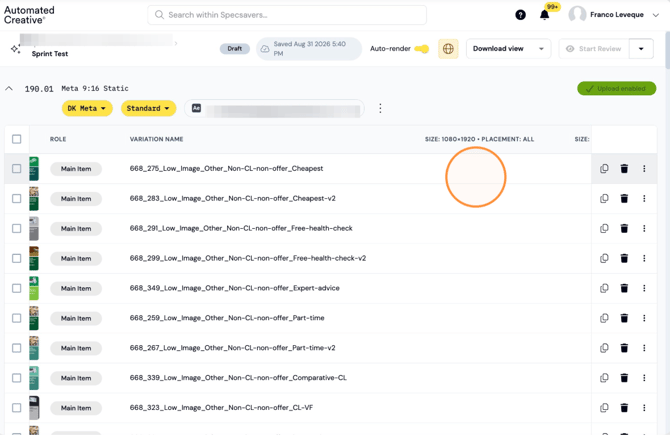
Note: Shows all the views combined together.