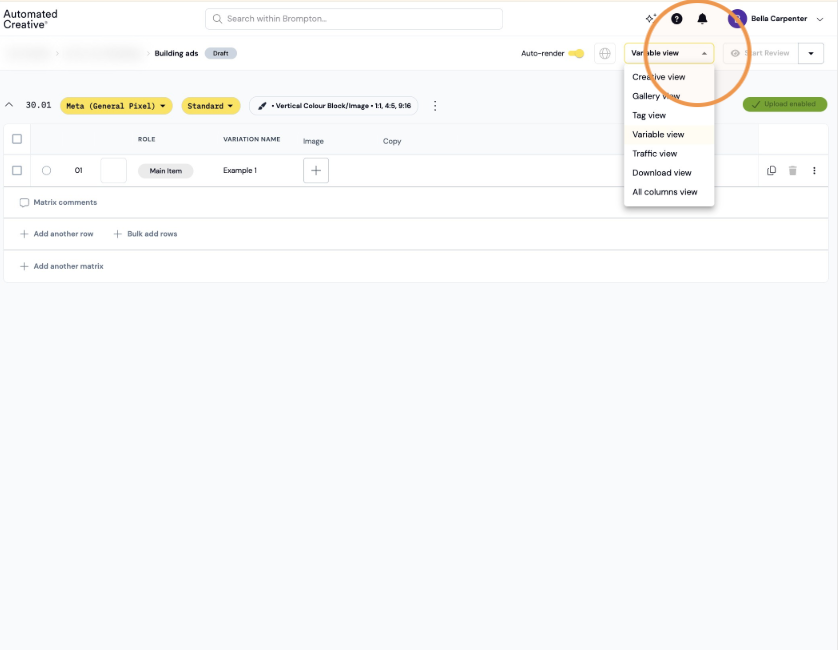
Step 2: To build an ad using your template, you need to fill out the different variable options. For this template, you can see the variables are Image and Copy.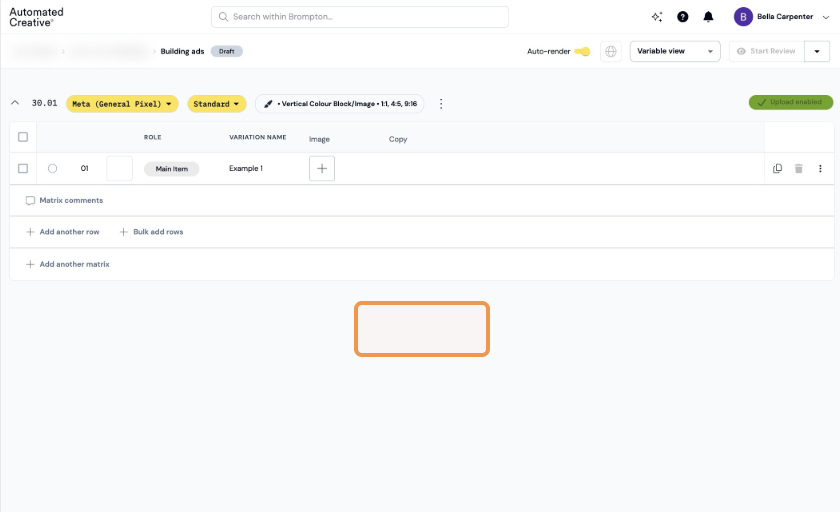
Step 3: The first variable of this template is Image. So I'm going to select the image + icon in the grid, and this opens up your asset bank. Select the image you want by clicking through the pages or searching it's name.
Images/logos/videos need to be first added to your asset bank to show up here.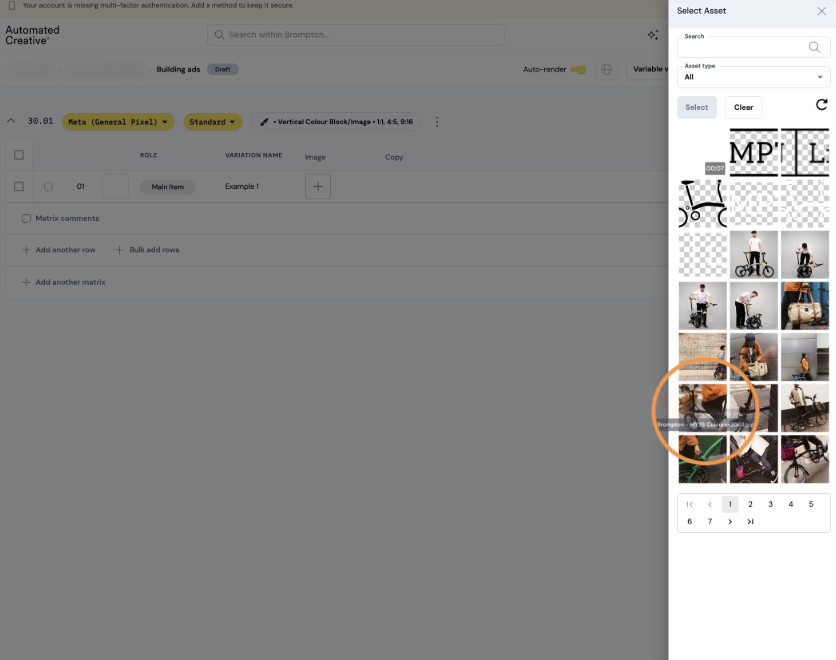
Step 4: Click "Select"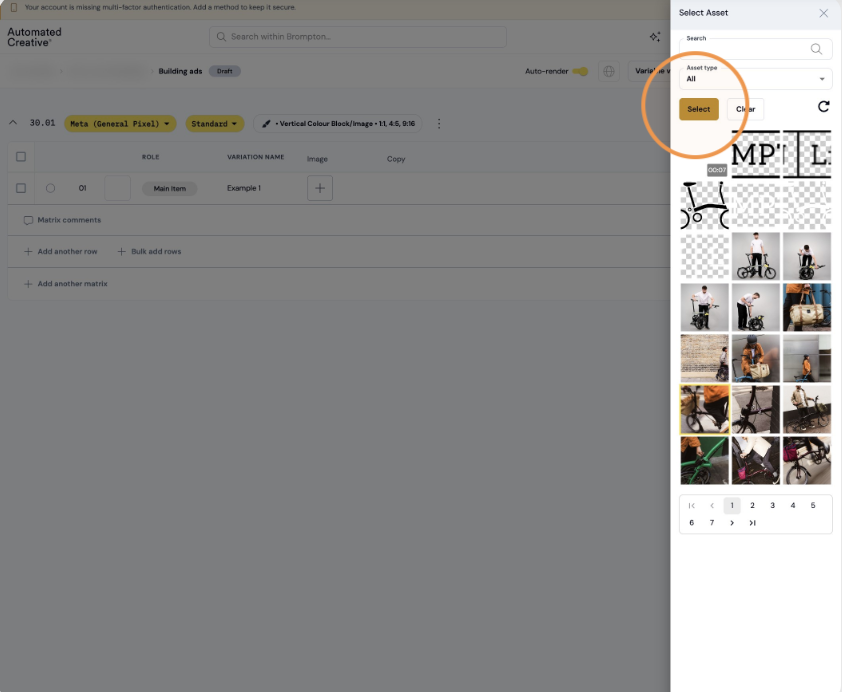
Step 5: Then you fill out the Copy variable.
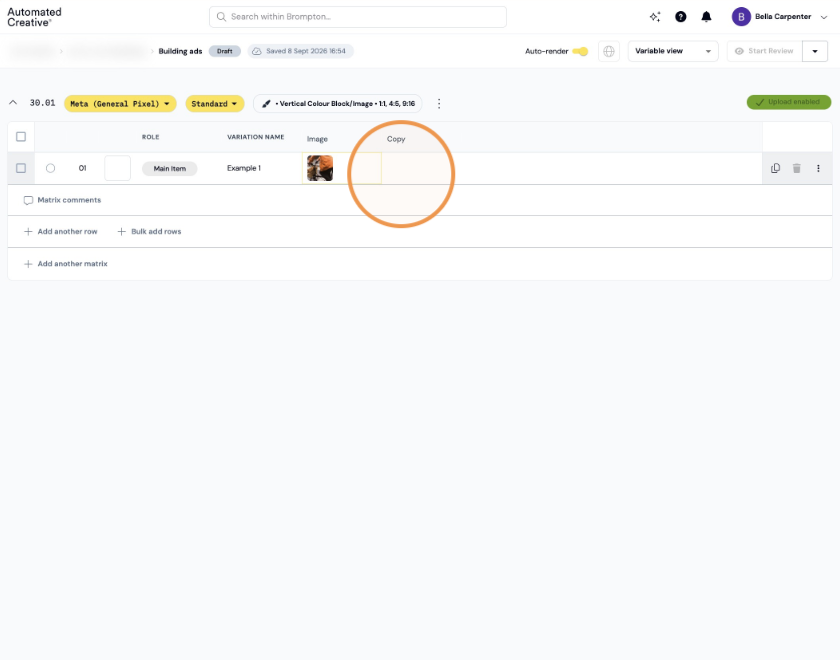
Note: It will just take a few seconds to render the creative (potentially longer if it's a complex template with many variables or a video).
Step 6: Once your creative has rendered, it will show up here. Select the eye icon to see in enlarged and in all sizes.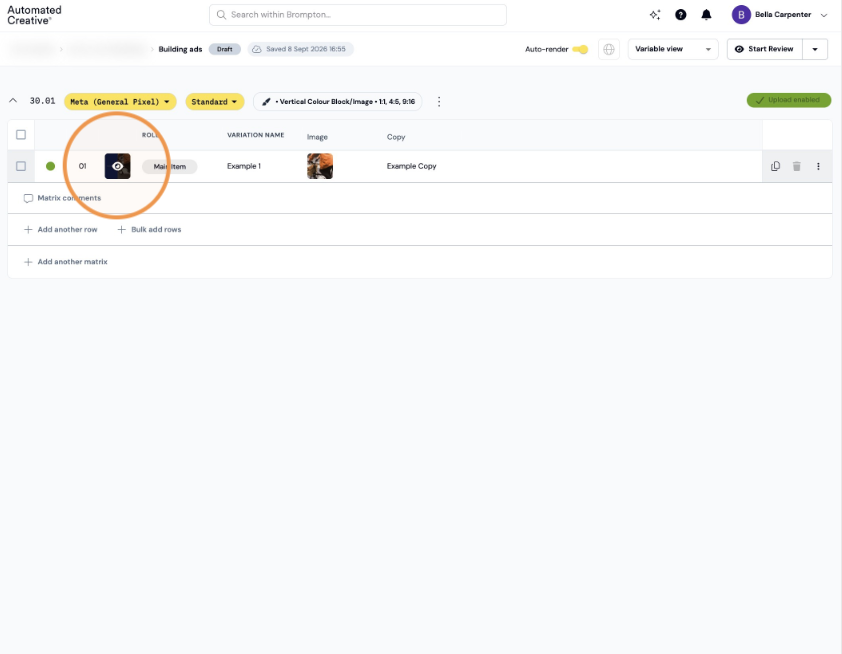
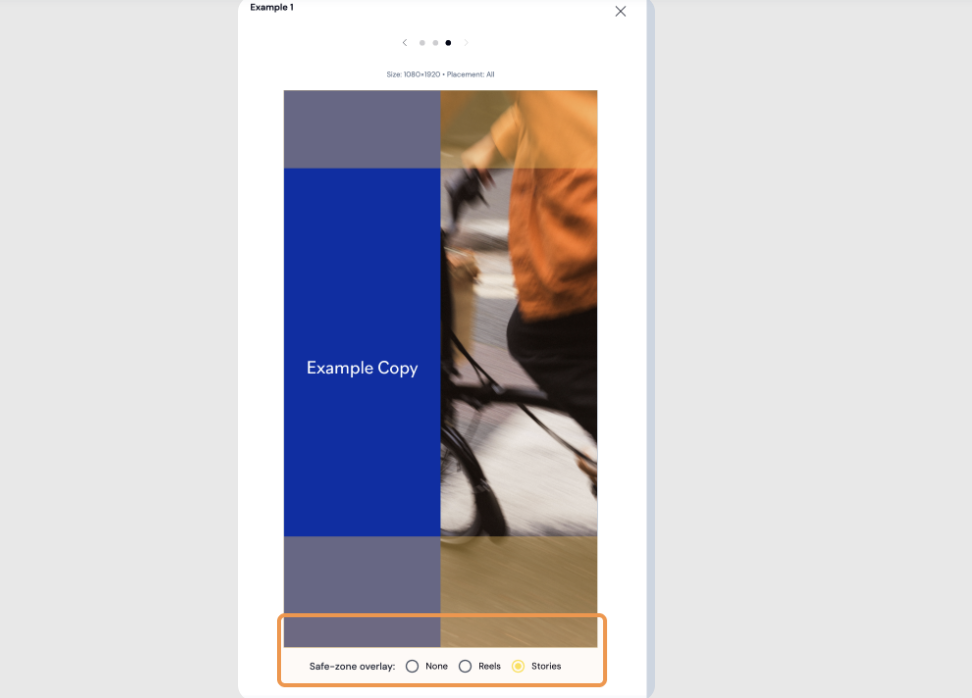
Step 7: Click through the dots to preview each creative.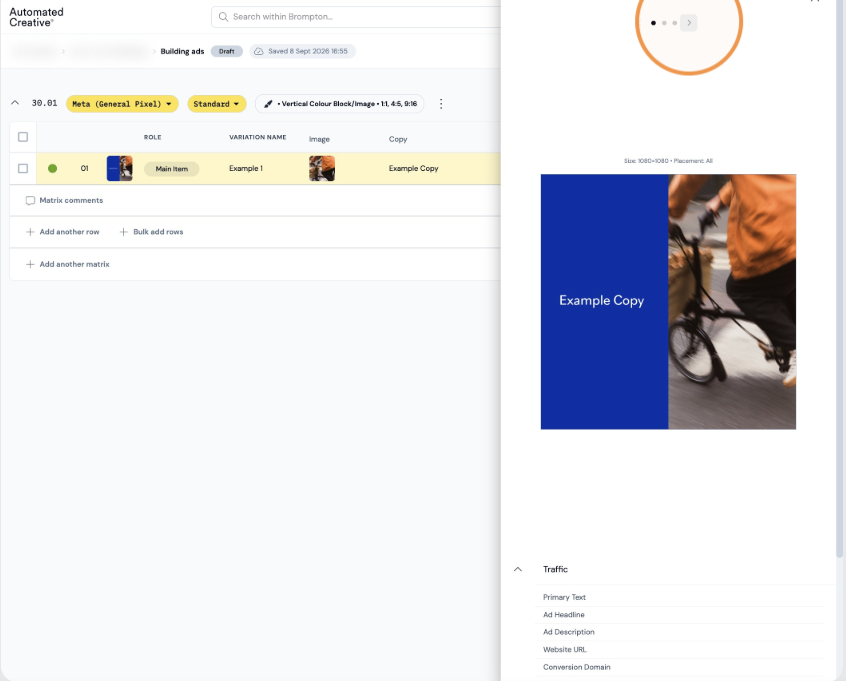
Step 8: You can also preview safe zone overlays for Meta reels and stories by going to the 9x16 preview and selecting the relevant safe zone overlay.