
Once that is completed, the sprint must be approved too. You can either send a review link to another person to approve (covered in another guide) or you can approve it yourself following the steps below.
Step 1: Click the dropdown arrow next to Start Review.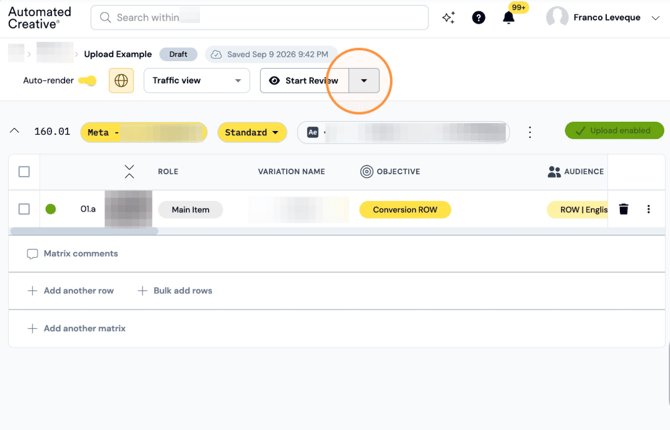
Step 2: Click "Approve Sprint"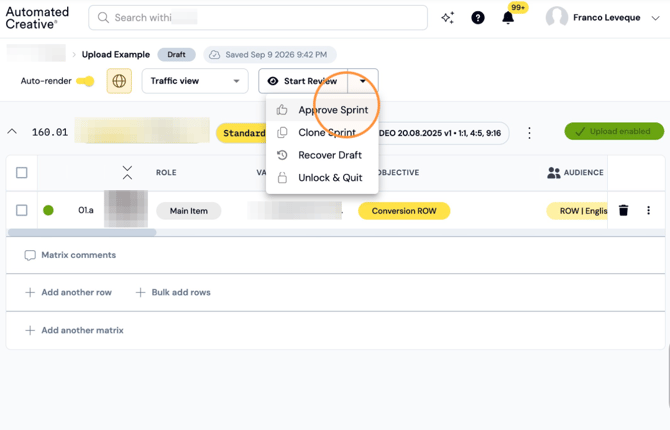
Step 3: Click OK to approve the sprint.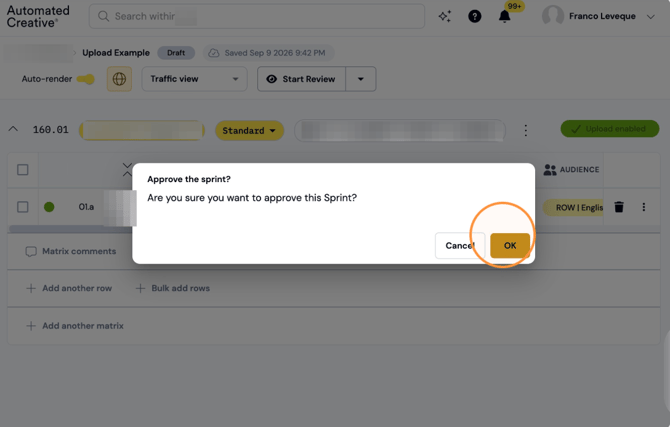
Step 4: Click "Upload"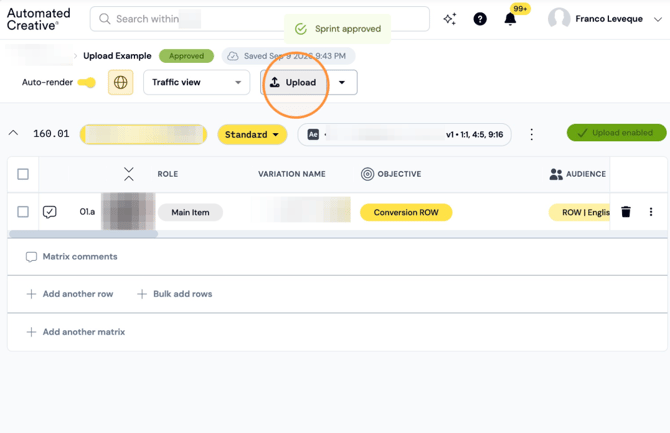
Step 5: Click Confirm to upload the sprint's items.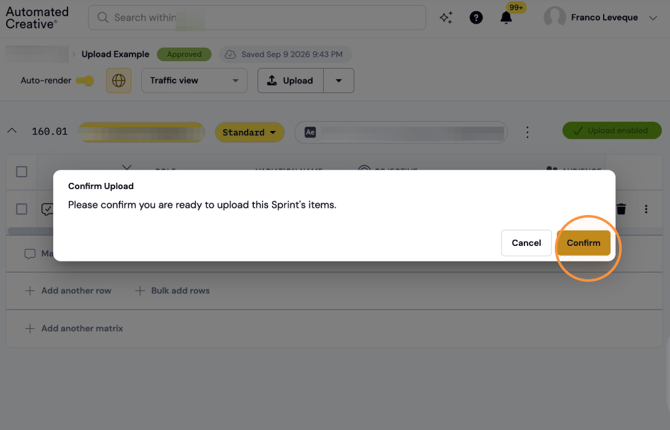
Note: If the upload is successful, you'll see a green tick to the left of the ad, as well as an UPLOADED tag in green next to the sprint name.
All ads will appear as OFF once they have been uploaded to all platforms. This allows for an additional round of QA directly in the platforms, so we can make sure everything looks correct before setting the ads live.
Step 6: Check the status on each ad's row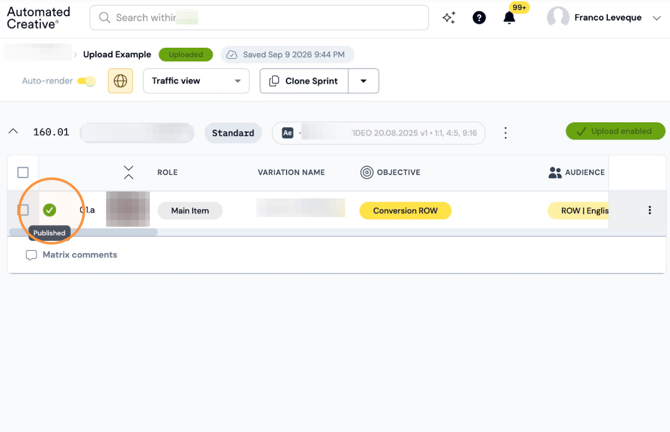
Flag: If there’s an error during the upload, you’ll see a red alert next to the ad. Clicking on the alert will show you the reason for the error.
Sometimes the error is temporary, and simply reloading the ad will allow the upload to go through successfully. In other cases, there’s an issue that
Step 7: Click here. 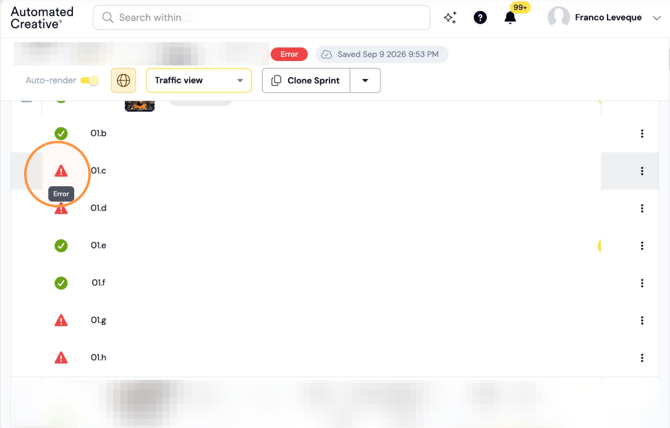
Step 8: See the reason for the error.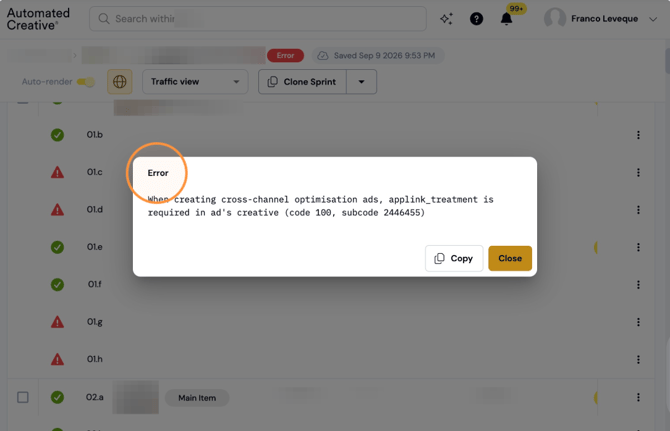
Step 9: Once it's fixed, select the ad/ads that have errors.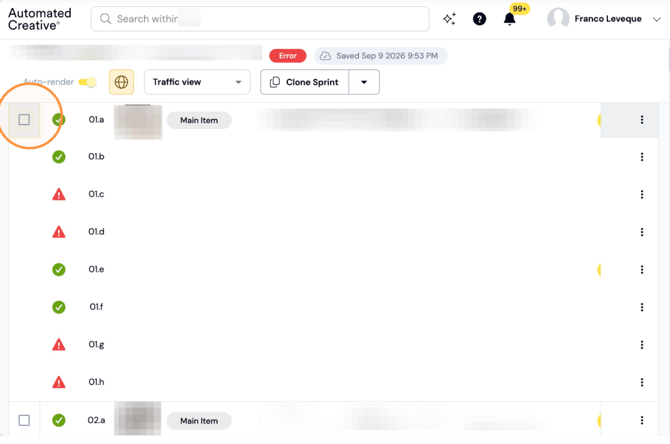
Step 10: Click the reload icon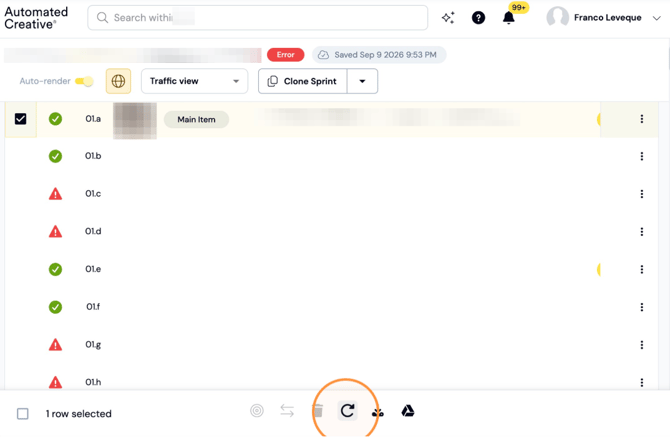
Step 11: Click reload. 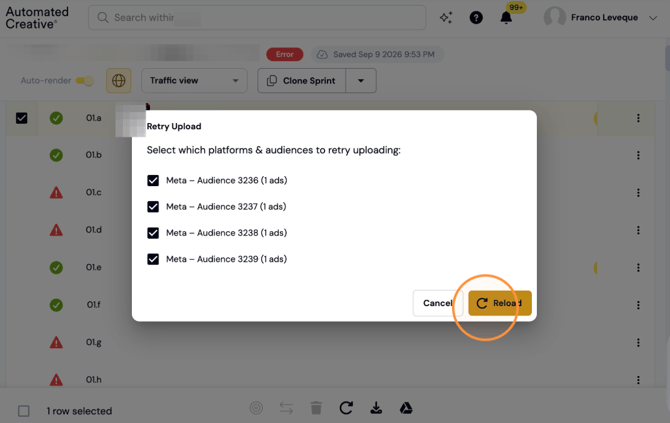
Note: Once everything has been fixed, your sprint will be fully uploaded and all indicators will turn green. You’ll then be able to check all your ads directly in Ads Manager.