What is a Template?
A template is the reusable design that your ads are built from. We set it up once with all the variable elements (headlines, images, colours, sizes), and each individual ad is just that template filled in with different content this is what lets us scale to a lot of variations quickly and consistently.
Types of templates we use
- After Effects templates: for more complex or heavily animated video creative.
- Creator Studio templates: our in-platform editor, used for static ads and animation/motion.
- Google Studio templates: used for display ads that traffic through Google's CM360/Studio tooling.
Which type we use depends on the format and complexity of the creative — we always recommend the most efficient option for the campaign.
How it works
- We build (or update) the template with your brand's look and feel.
- Ads are generated from that template as part of a build, each one swapping in different copy, images, or sizes.
- Once approved, we upload the ads to the relevant platform or supply the connected feed.
Project Navigation
1. Select the Brand 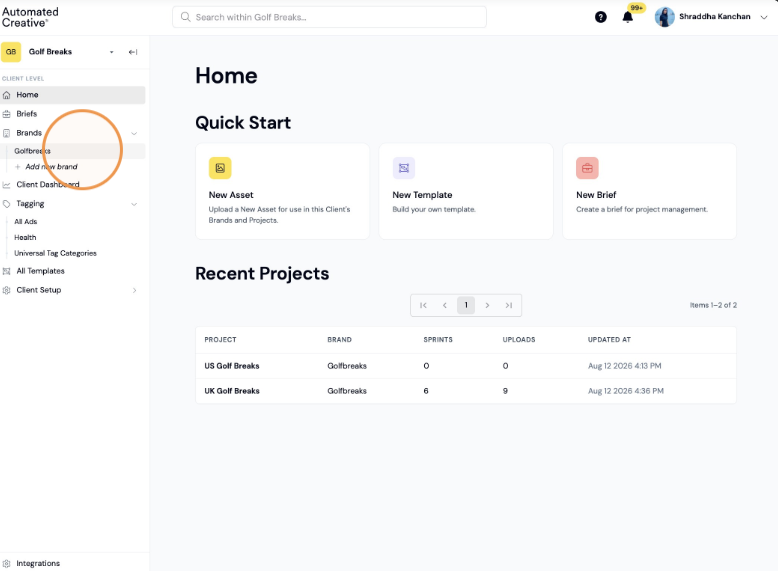
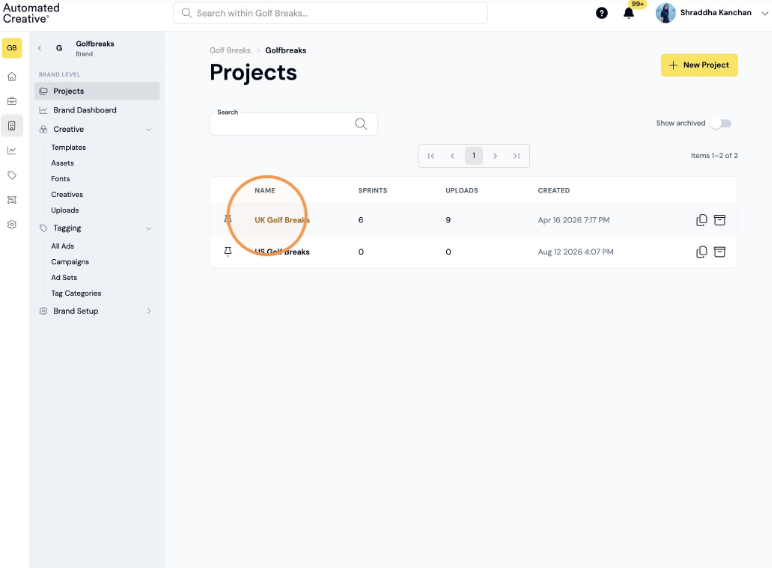
2. Select the Project
3. Select the Sprint 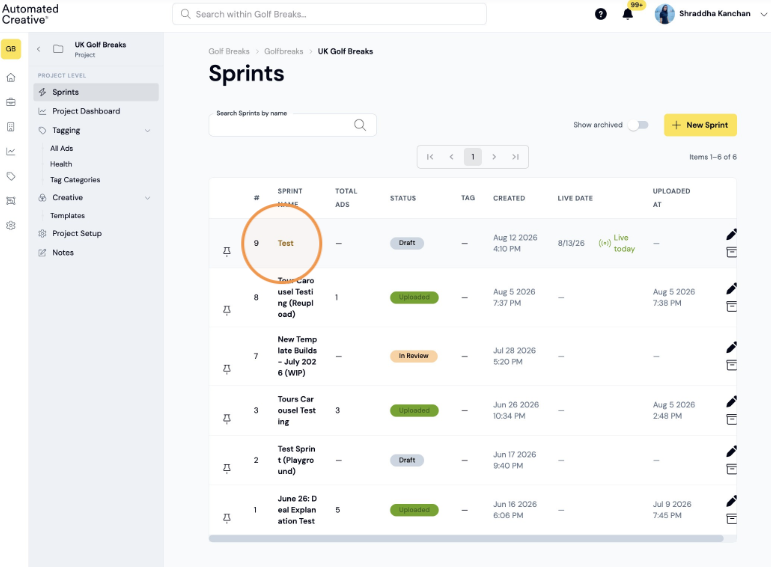
4. Click "Select Template"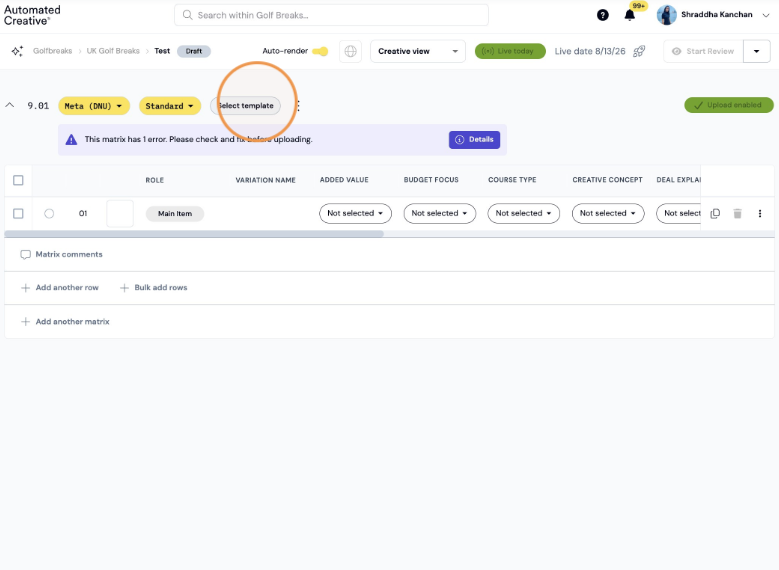
5. Click on the template dropdown
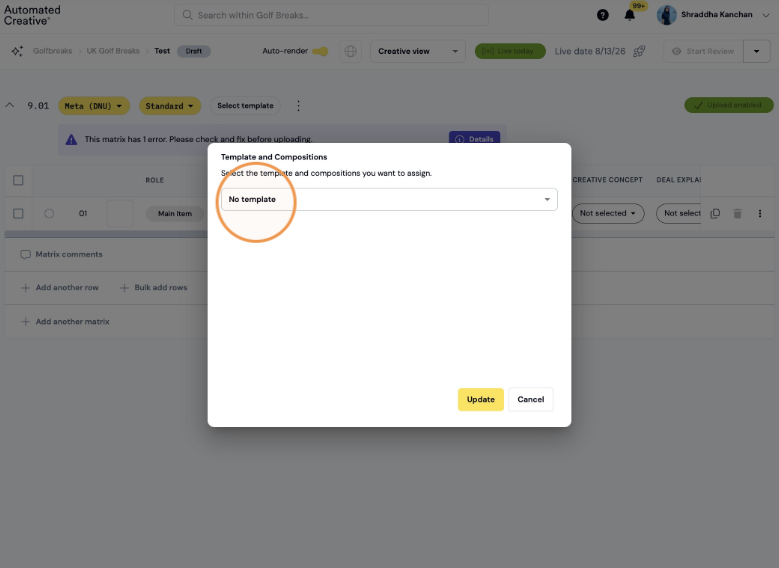
6. Select the template you'd like to build your ads with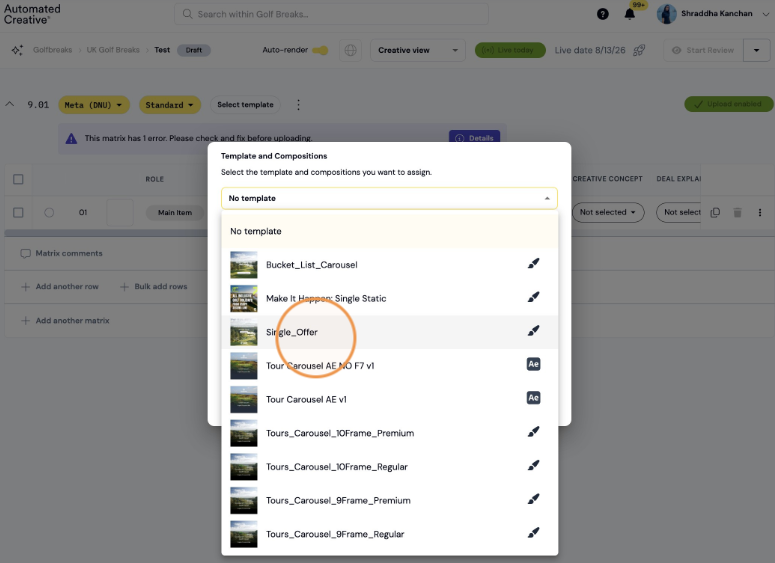
7. Select the sizes you'd like to build with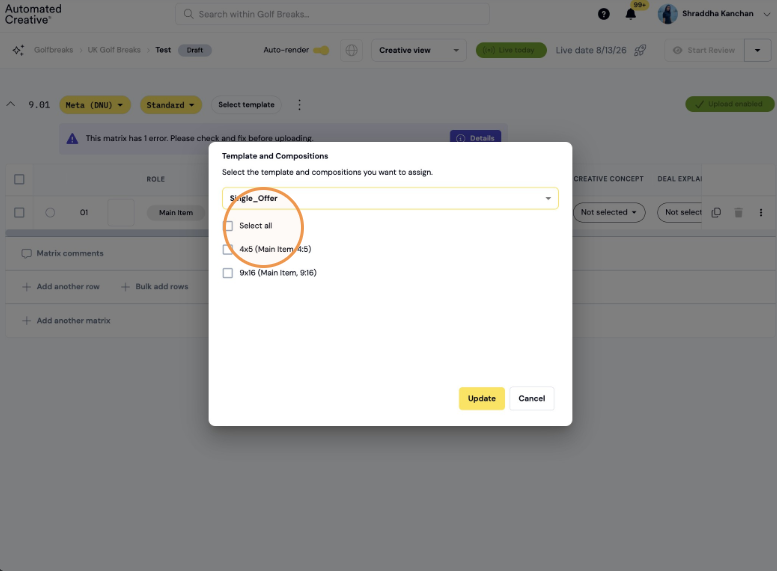
8. Click "Update"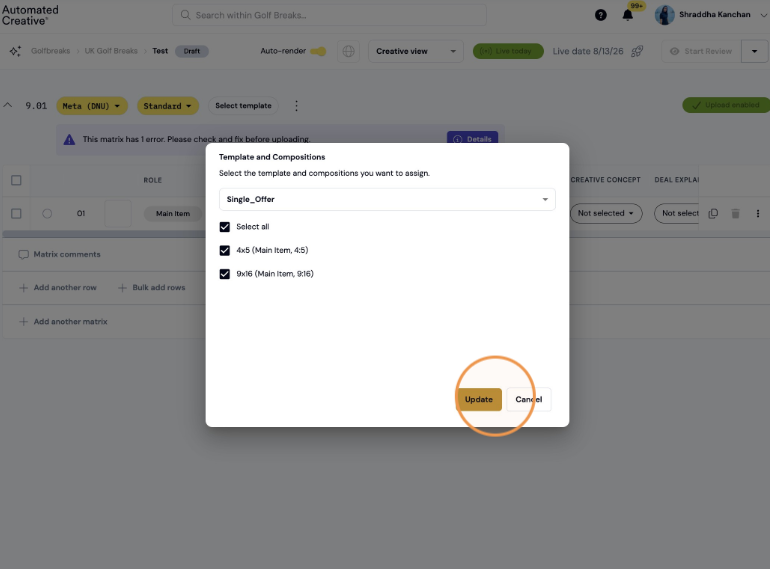
Alert!
Editing a template after ads exist will reset any custom row-level tweaks on next render. Creator shows a warning per affected row when a template has changed.