Step 1: Expand Brands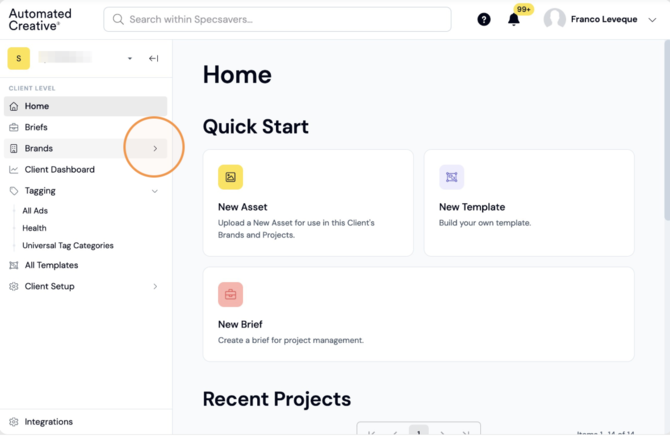
Step 2: Select the Brand you want to tag the Objectives and Audiences for.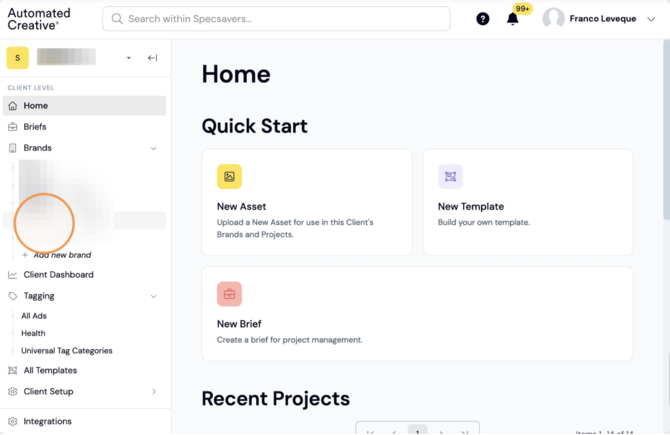
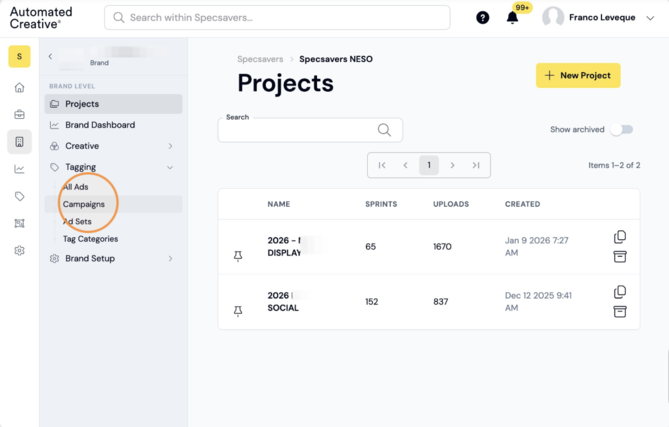
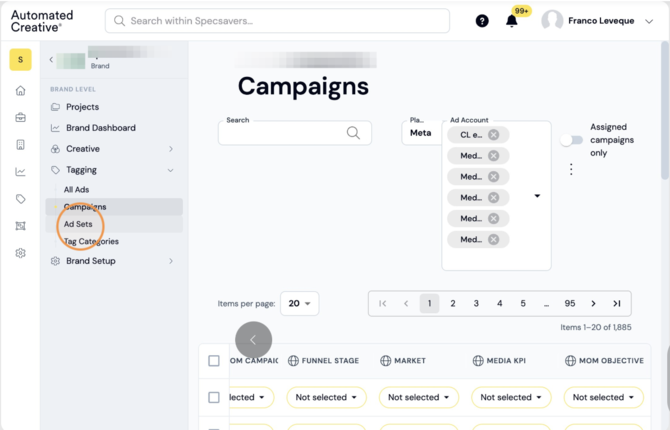
Step 3: Select "Campaigns" from the tagging dropdown.
Step 4: Open the Platform selector. You can filter by one account specifically or just select all of them. You can remove all of them at once by clicking on the "X" to start selecting again.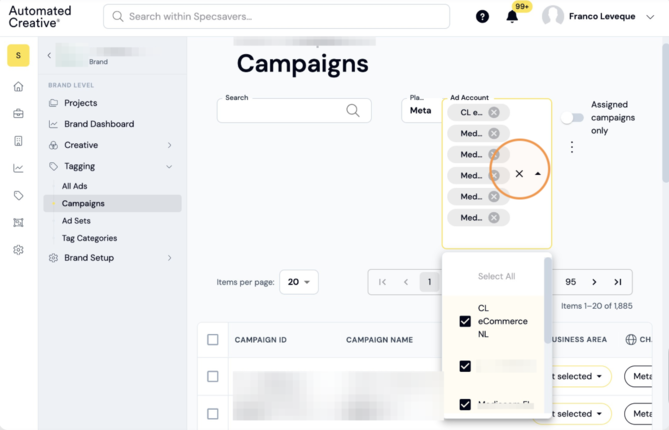
Step 5: Click the Search field if you want to look for specific campaigns.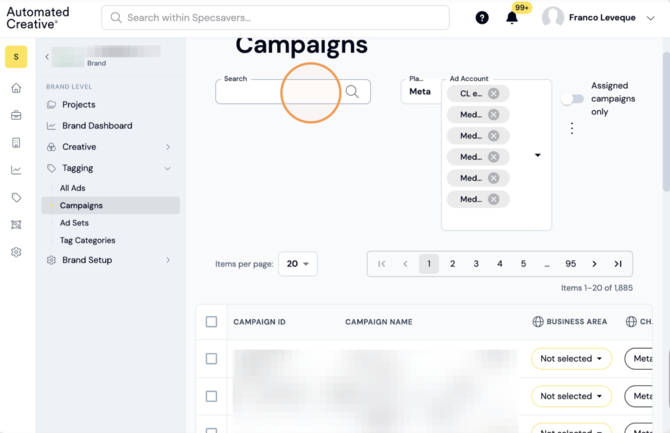
Step 6: You can also filter by platform by opening the platform dropdown.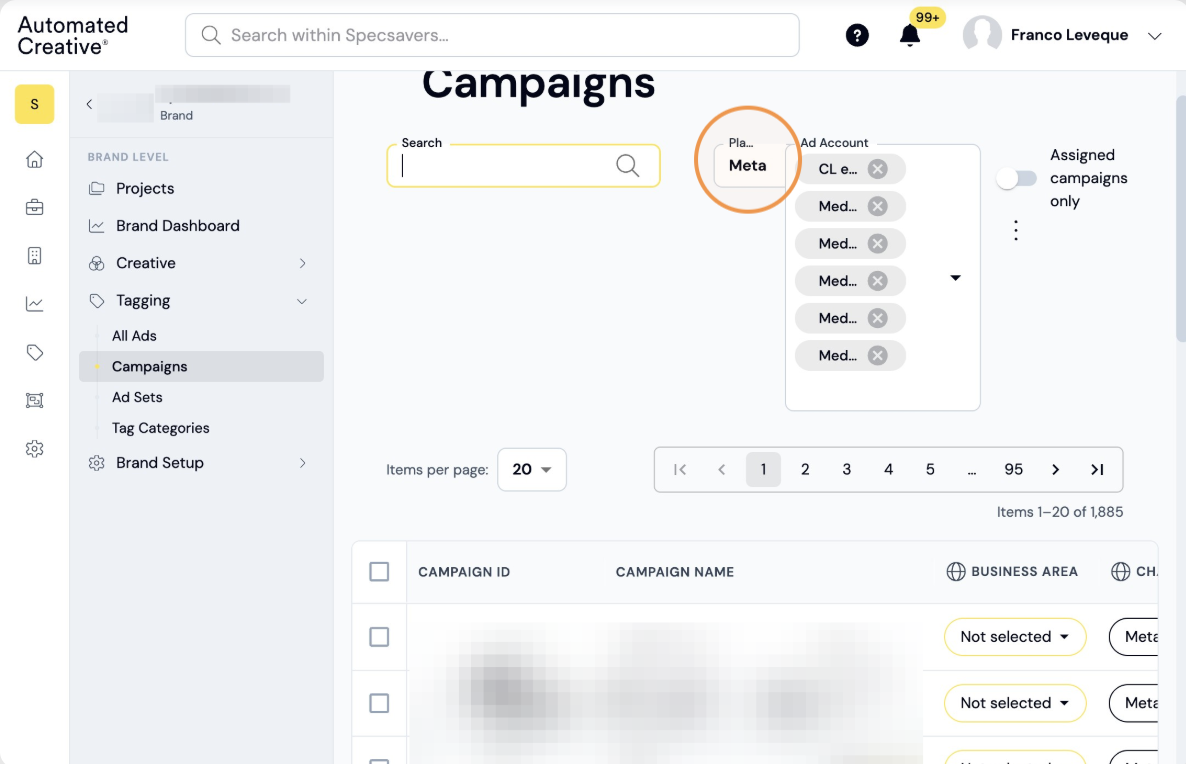
Tip!
Each client will have it's own tag categories and it's own available tags within those categories.
Step 7: Each row represents a campaign. Click to open the dropdown and select the one that fits more. Scroll right to see all the tag categories available.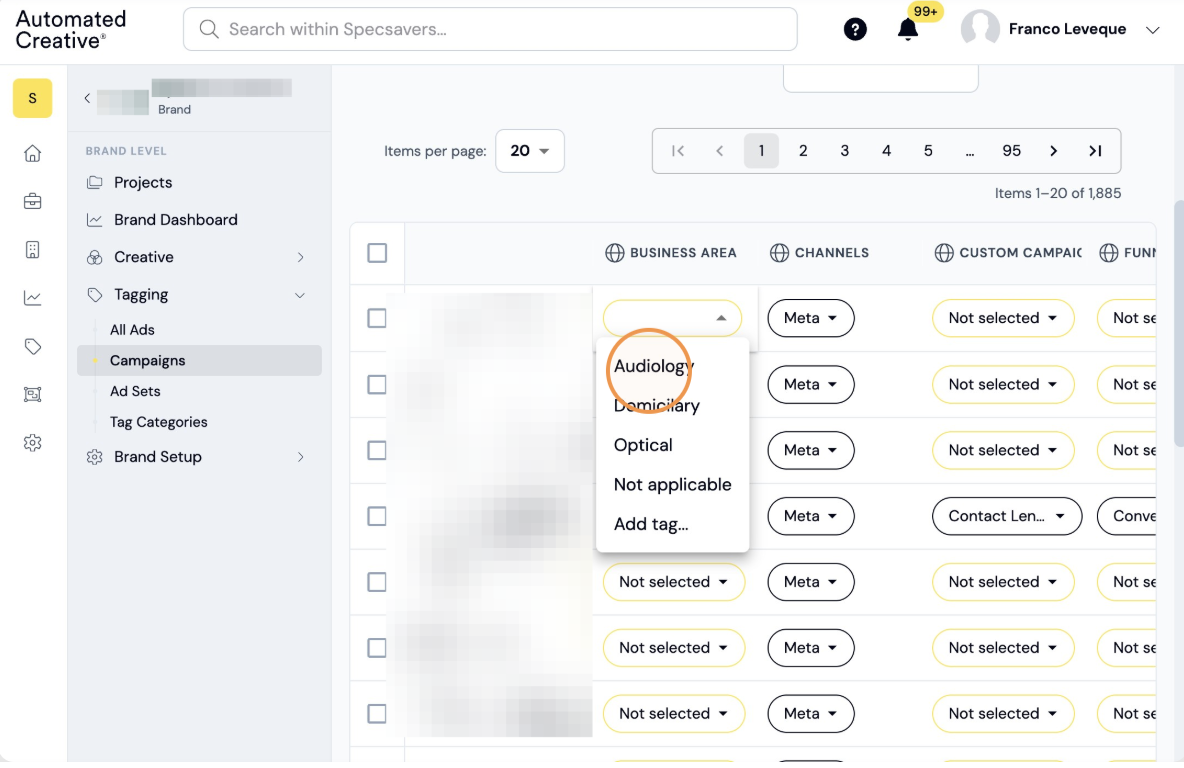
ALERT!
Although it's possible, please ask someone at AC before you add a new tag or tag category.
Step 8: To tag your ad sets click on "ad sets" and repeat same process shown above for campaigns.
Tip!
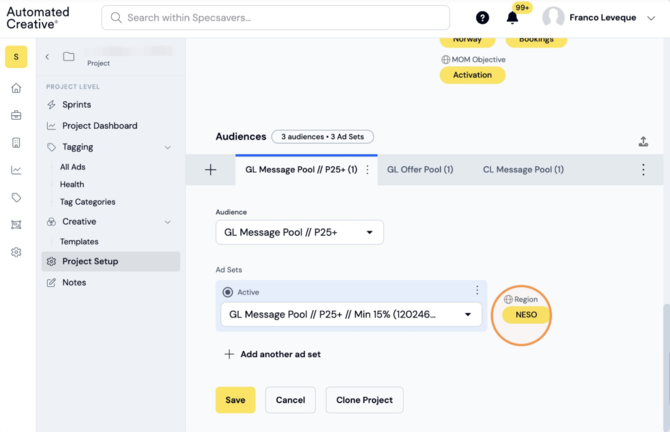
You can also access the objective and audience tagging page while on the setup page by clicking on one of the tags next to your objectives or audiences. This will automatically open a new page with that campaign or ad set already filtered.
Step 9: 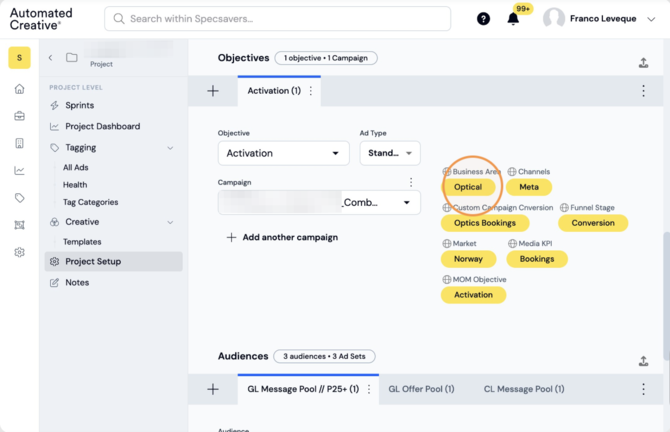
Step 10: It will automatically filter that campaign.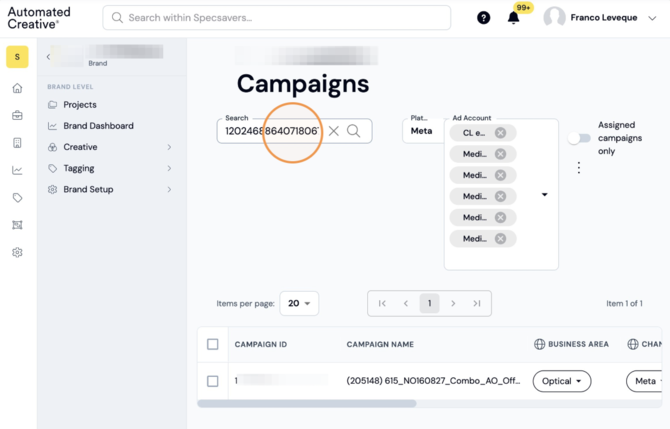
Step 11: Repeat process for audiences.