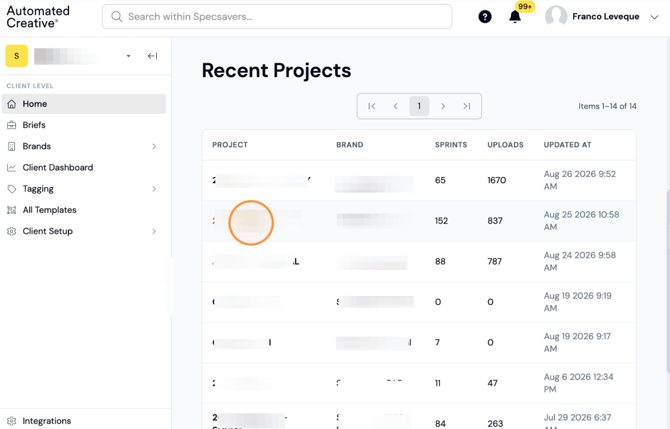
Step 1: Open one of your projects.
Step 2: Click "Project Setup"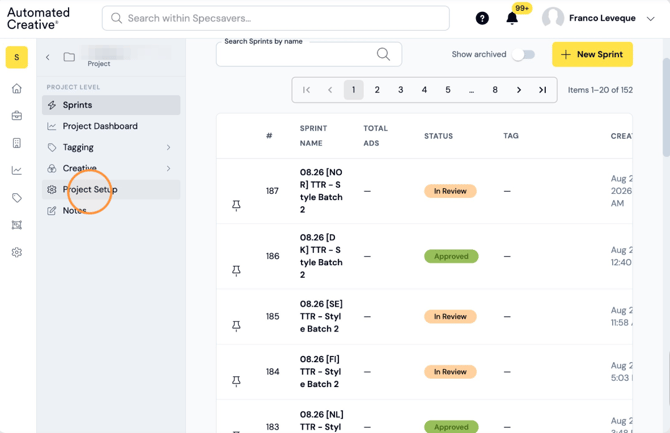
Step 3: Click the "+" next to "Platforms."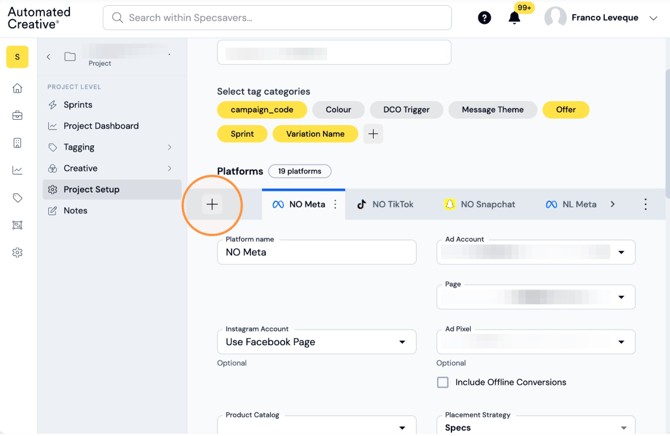
Step 4: Select the platform you want to add.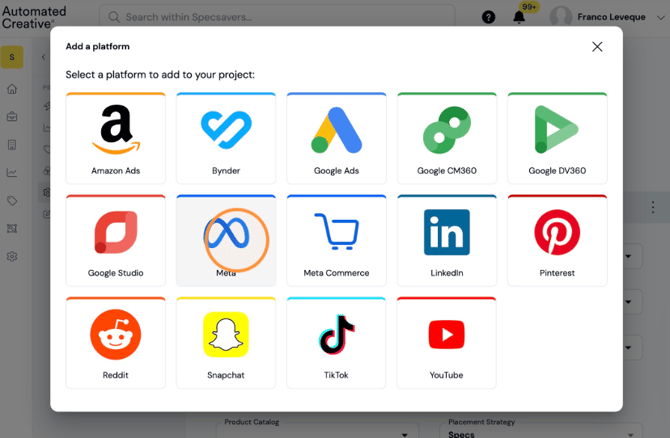
Tip!
Each Platform will have it's own required fields to fill in. Make sure to complete all the non-optional ones and see if the optional ones apply.
Step 5: Edit the platform name so it's easy to identify — include details like the market it belongs to or anything that helps you recognize it quickly.
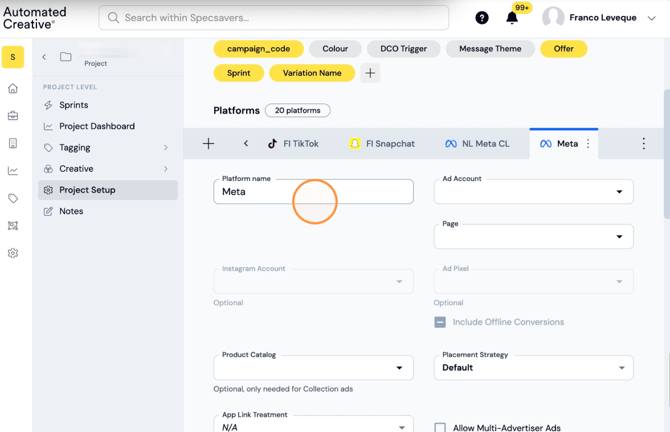
Step 6: Select an Ad Account from the dropdown list. If it's not showing up in there you'll have to link your Account with Creator first (covered up in another guide).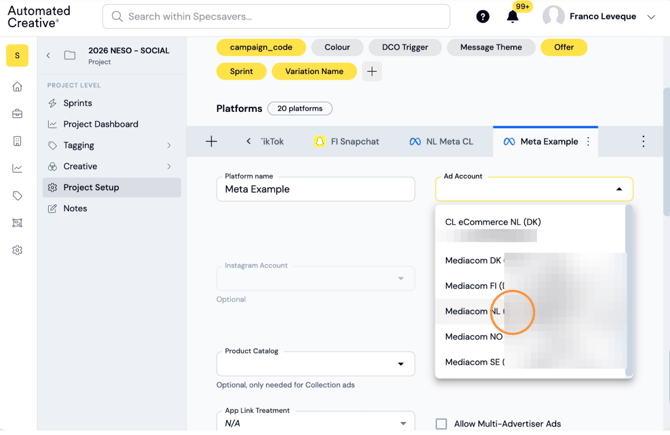
Step 7: Complete the remaining fields, making sure they're always related to the account you selected.
Scroll down to add your Objectives & Audiences.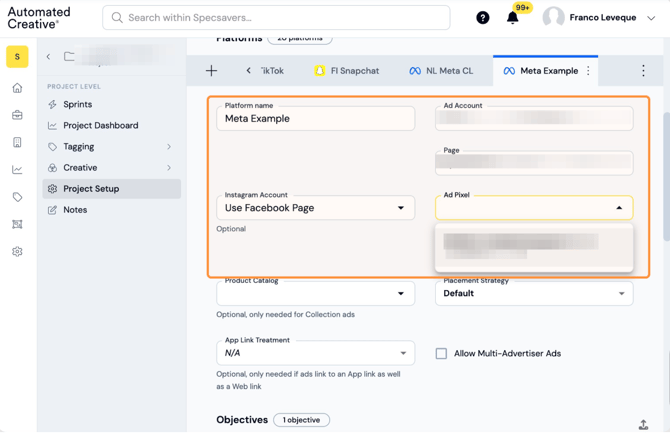
Tip!
Within Project Setup, Objectives work as containers that group your campaigns together — you can name them however makes sense to you (e.g. by main metric, or any label that helps you organize related campaigns). Inside each Objective, you'll add all the campaigns you want grouped under it.
Step 8: Click the "Objective" field.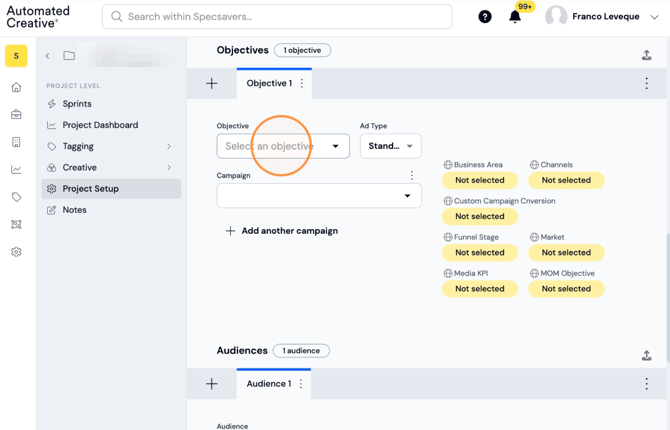
Step 9: Click "+ Add Objective" or select one from the dropdown list (if it's a new account this list will be empty).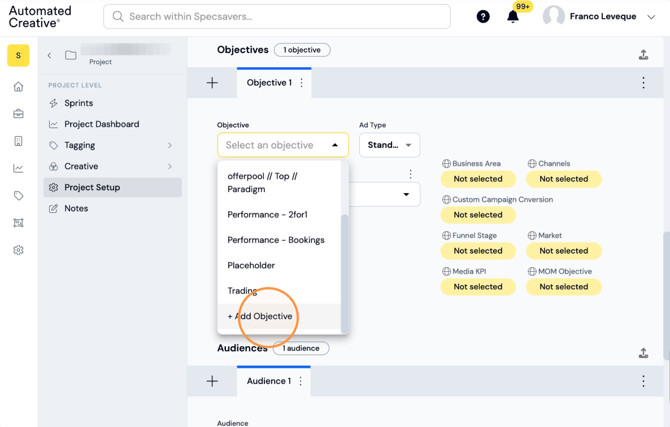
Step 10: Type the name of your Objective and click "add".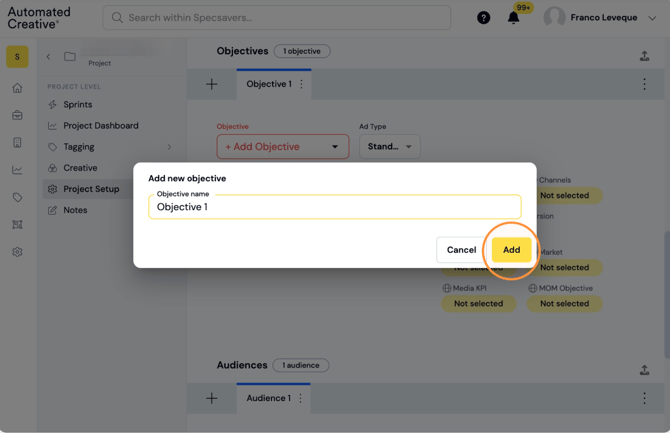
Step 11: Click the "Campaign" field.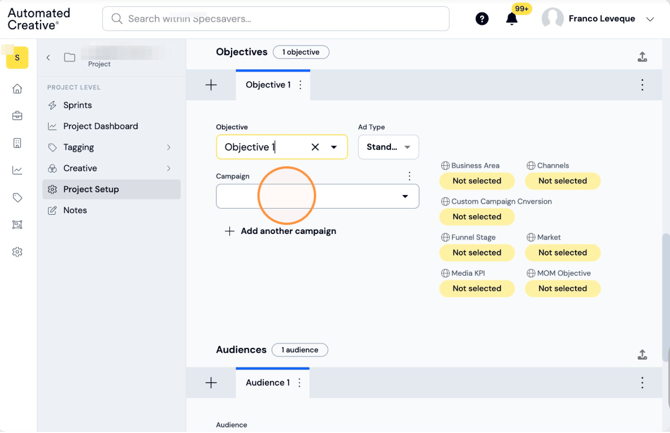
Step 12: Select the campaign you want to include under this objective. You can select it from the list or copy/pase campaign ID or Name.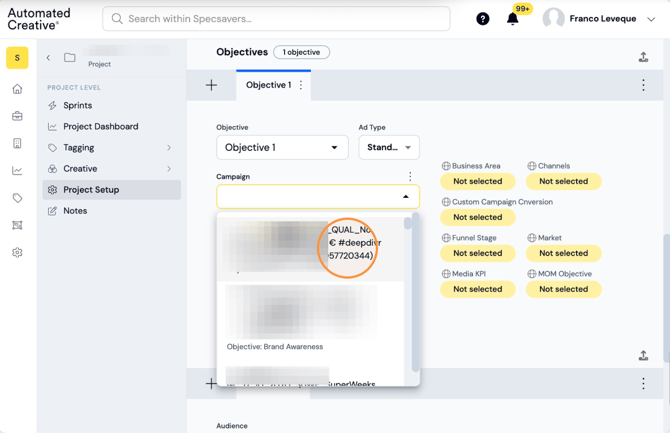
Step 13: You can add as many campaigns as you need under one objective by clicking on "add another campaign".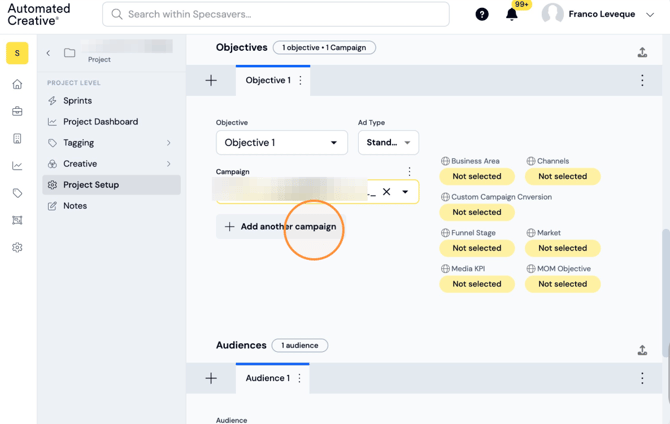
Step 14: Select a different campaign.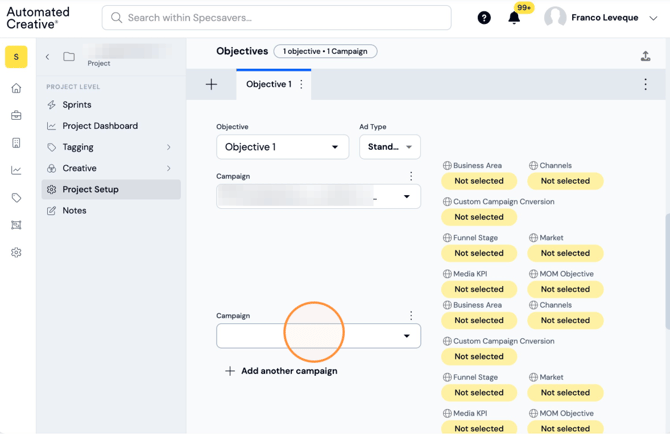
Step 15: If the campaign you're looking for doesn't show up at first, scroll down to the end of the list and click "Reload" and then search for it again.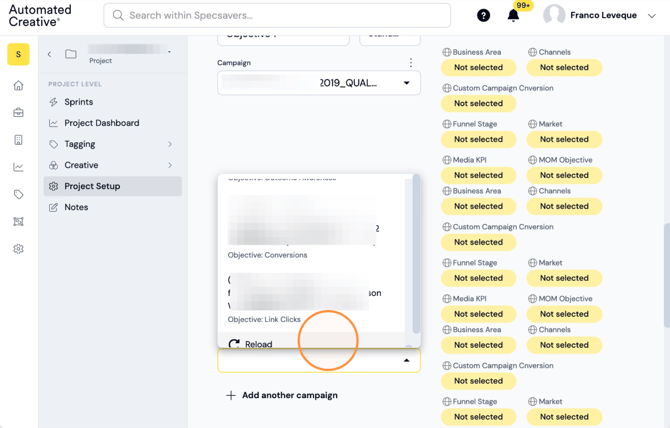
Step 16: You can add more Objectives by clicking the "+" button to englobe other campaigns under a different name.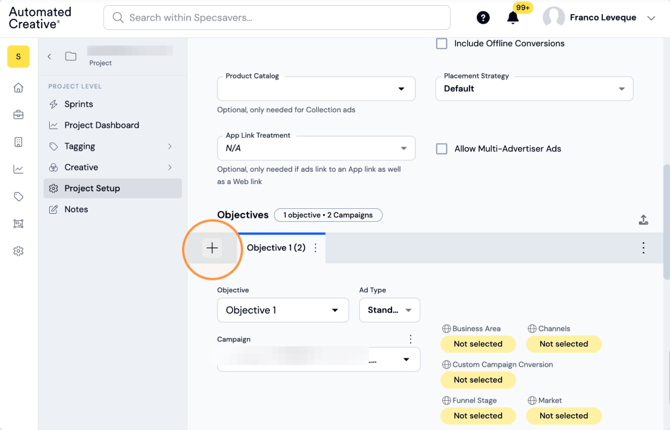
Tip!
Audiences live inside each Objective too, and they represent your ad sets. Each Audience also gets its own name, making it easy to identify and select when setting up a sprint.
In short: Objective = group of campaigns, Audience = ad set, and both get custom names so you can quickly recognize and select them later.
Step 17: Click the "Audience" field.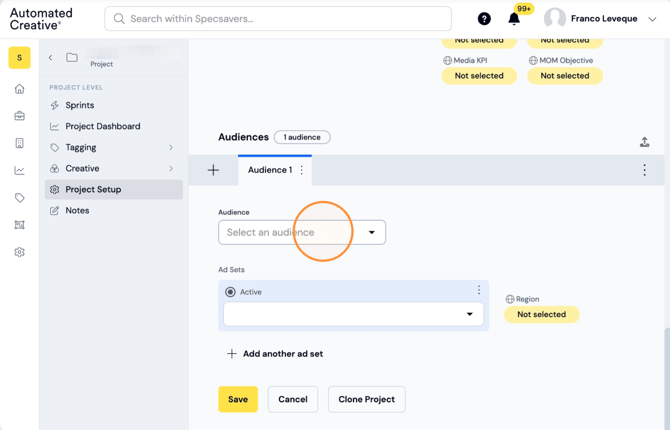
Step 18: Click "+ Add Audience" or select one from the dropdown list (if it's a new account this list will be empty).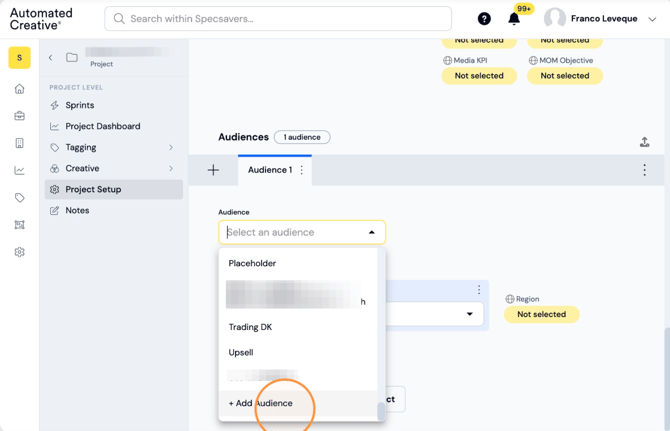
Step 19: Type the audience name you want to create and then click "add"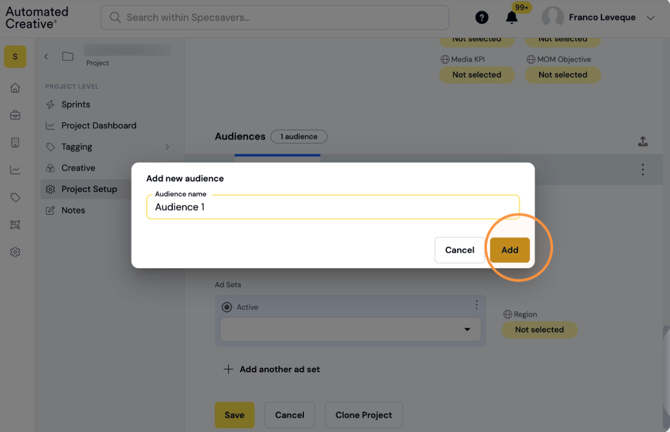
Step 20: Click on the ad set field.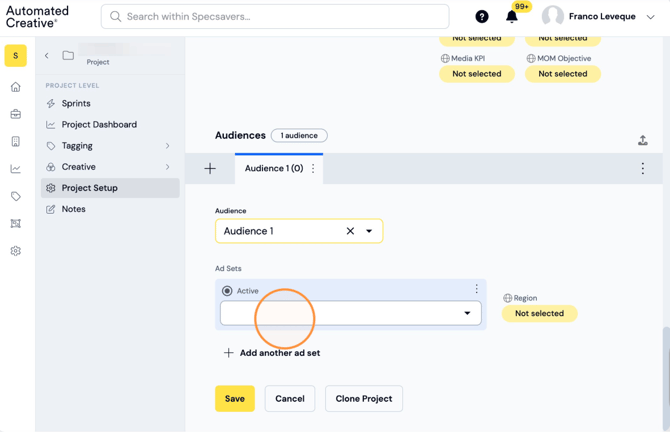
Step 21: You can only have one active ad set for each Audience. However you can add more by clicking "add another ad set" and then switching the active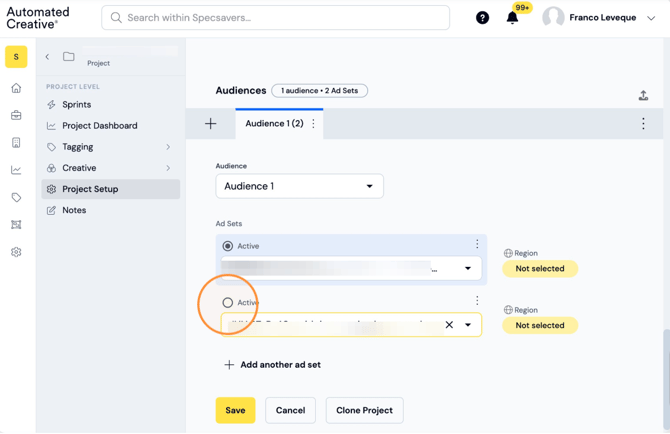
Step 22: You can add multiple Audiences to live under the same Objective by clicking on the "+" button.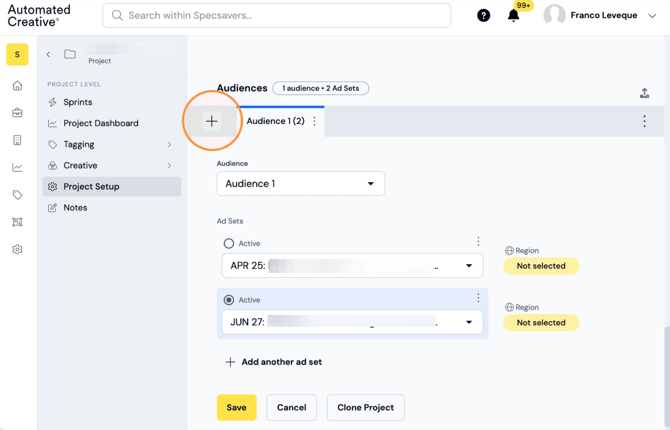
Step 23: Repeat same process making sure the new ad set is active.
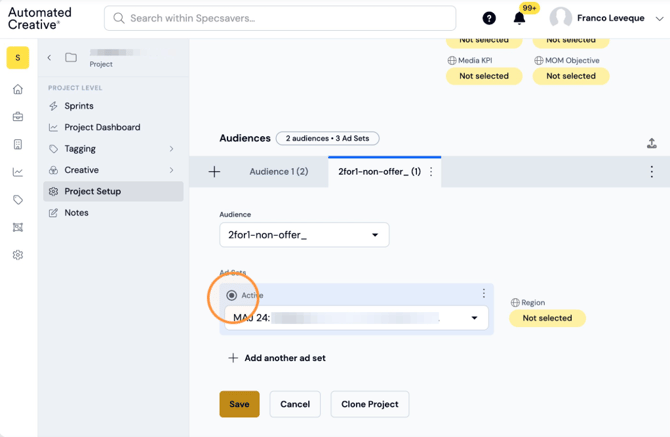
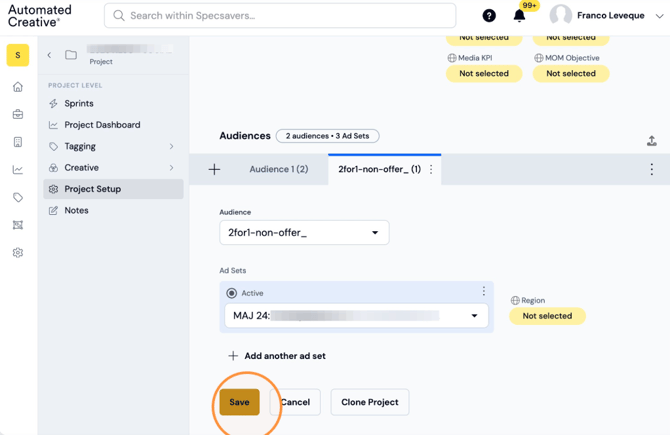
Step 24: Click "Save"