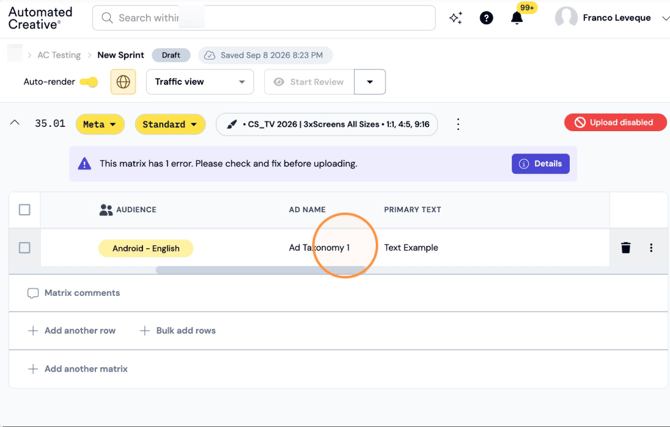
Note: If you have to upload one or a few ads, sometimes it's best to do the trafficking part manually.
Step 1: Click "Traffic View"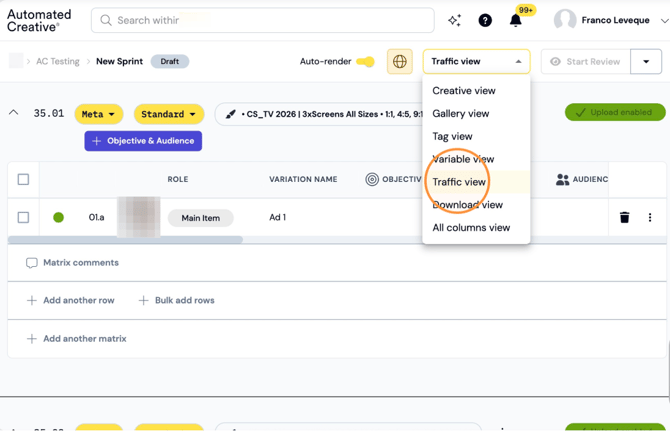
Step 2: Select an Objective and Audience by selecting your ad/ads.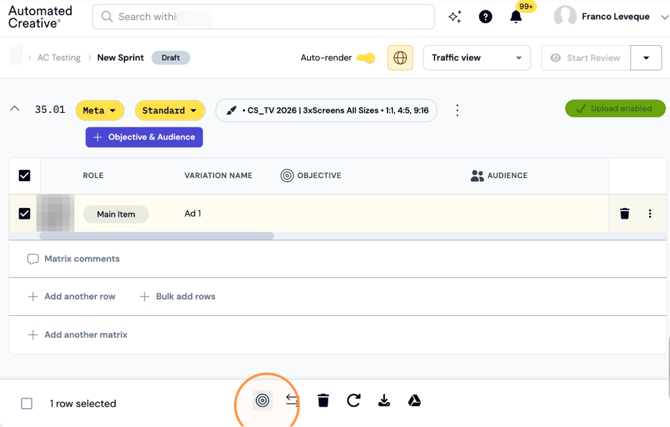
Step 3: Ad Name is the name your ad will have once uploaded to the platform, following each brand's naming guidelines.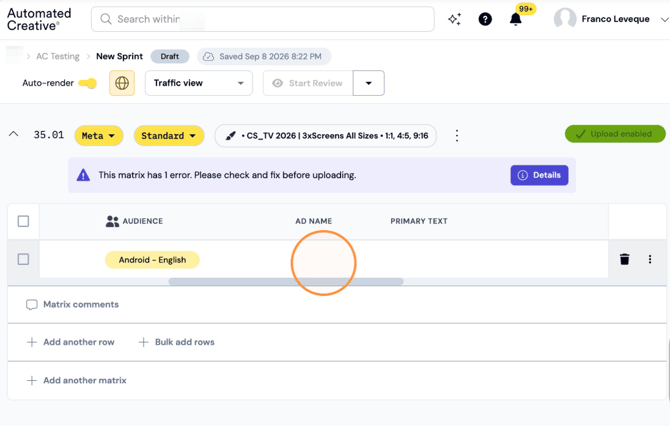
Step 4: Depending on the platform, you'll have different text fields to fill in. Fill them accordingly for each ad.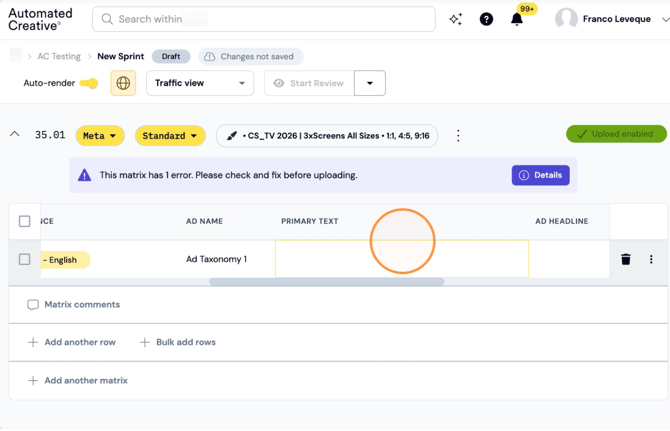
Step 5: Add the URL your ad will direct to.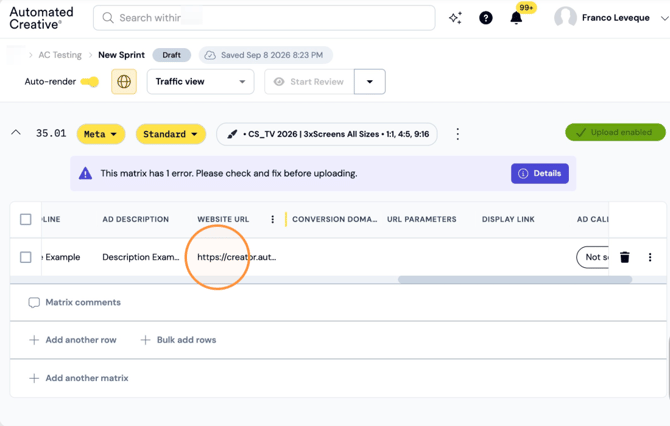
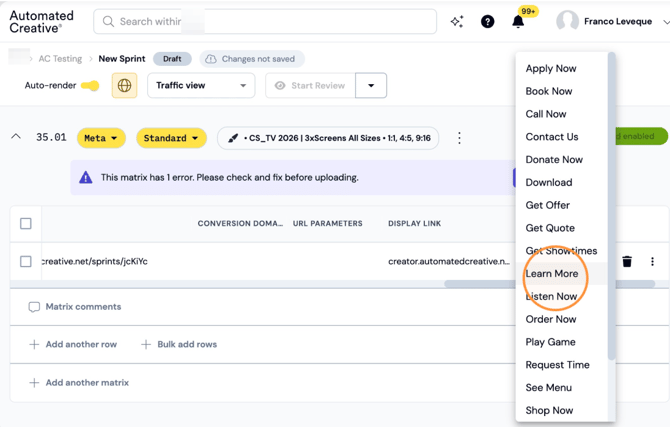
Step 6: Select CTA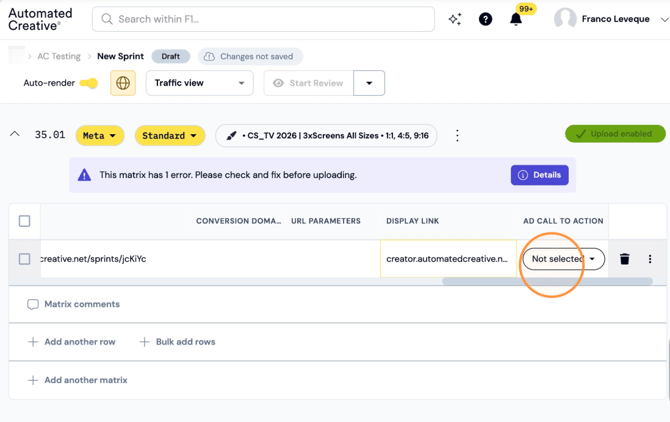
Upload Enabled/Disabled: This lets you choose which Matrices get uploaded when you run the sprint, without having to delete them. It's useful if a Matrix isn't ready yet, or if you only want to upload part of your ads at a time while keeping the rest saved for later.
Step 7: Matrices will be "Upload enabled" by default. Click on this button to disable the matrix from uploading.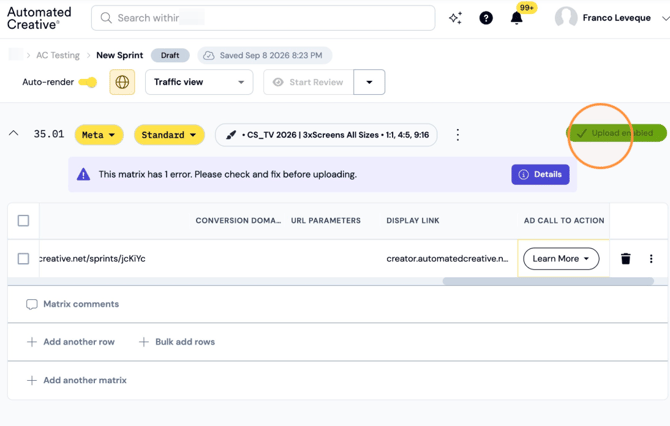
Step 8: It will automatically turn the button red and say "upload disabled".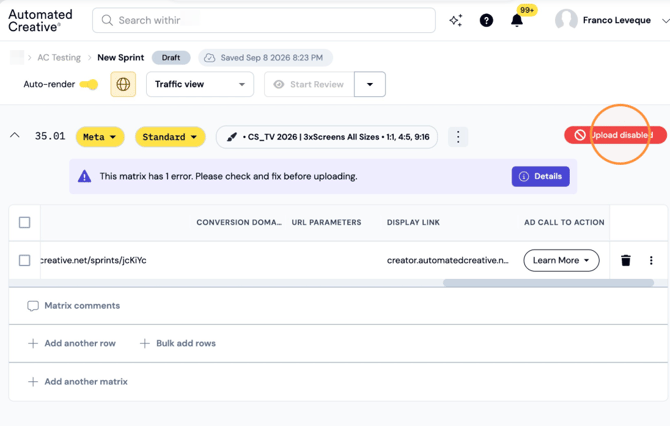
Import a Trafficking Spreadsheet
Step 9: Click "Import trafficking spreadsheet"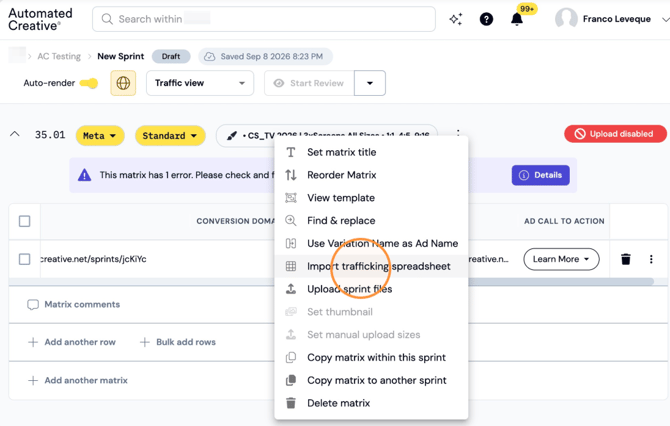
Step 10: Click "Connect"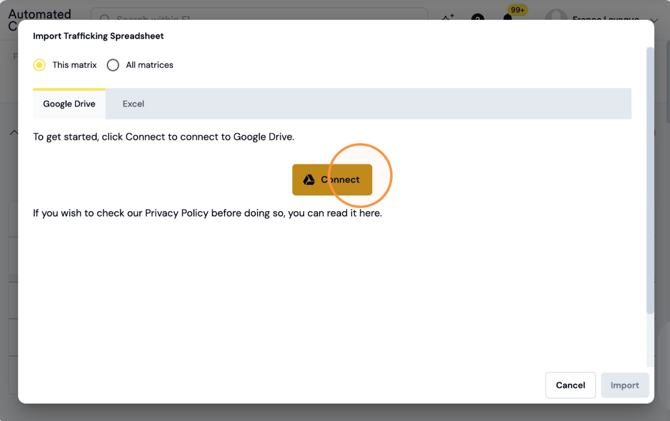
Step 11: Select your Google account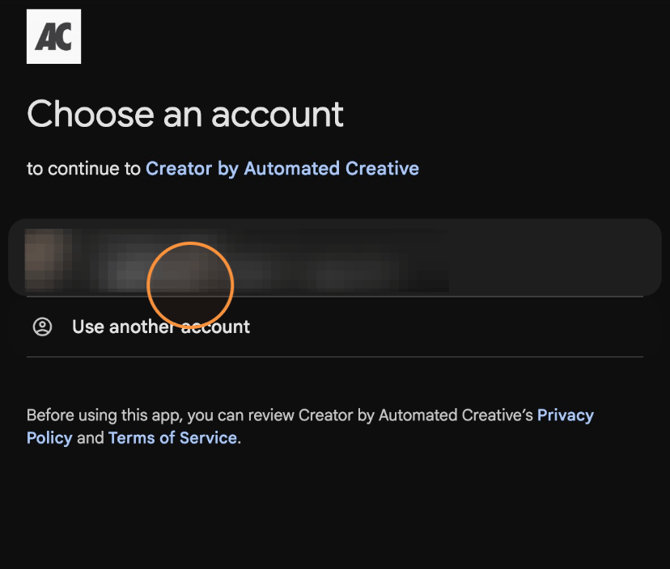
Step 12: Click "Make File"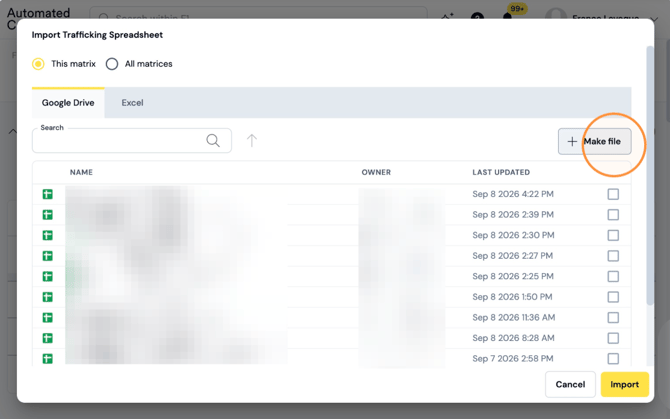
Note: You can create a trafficking sheet for just one matrix or all of the matrices on the sprint.
Step 13: Name the new file and click "Continue". 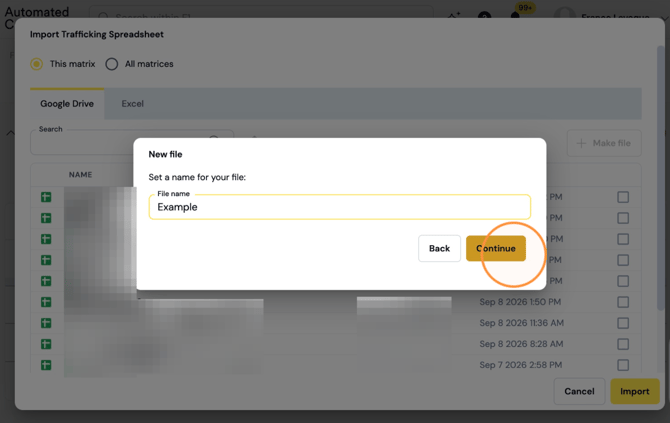
Step 14: Find your new file and click on it to open it.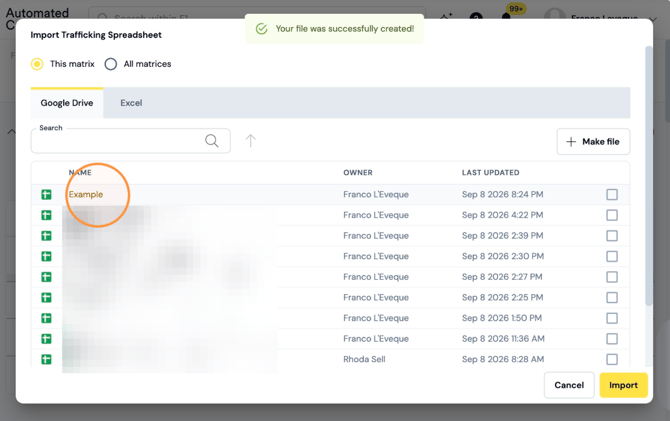
Review and Import
Step 15: Fill in all the traffick details.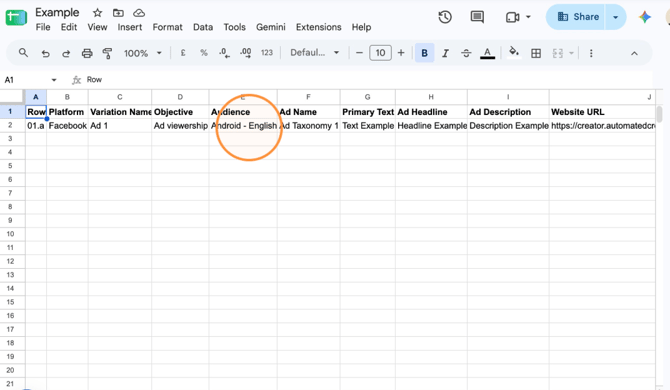
Tip! It's suggested to assign the objectives and audiences first to each ad before creating the trafficking spreadhseet, as this will enable more ad lines that you will need to fill in.
Step 16: Once it's completed, go back to the creator tab, select your file and click "Import"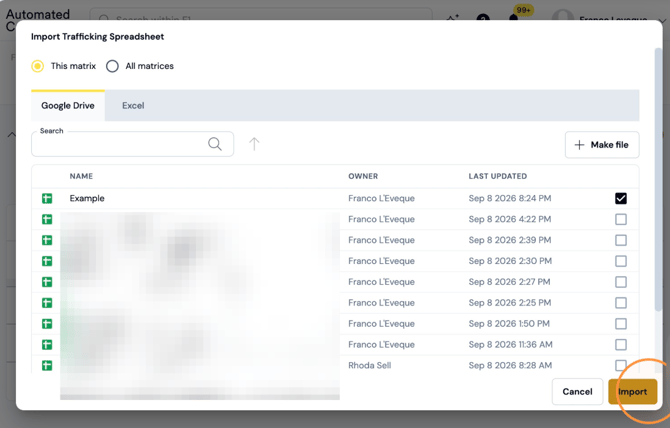
Step 17: All your trafficking info will appear on your matrix.