Step 1: Matrix view example, it contains a set of ads built under one template. Each row represents an ad.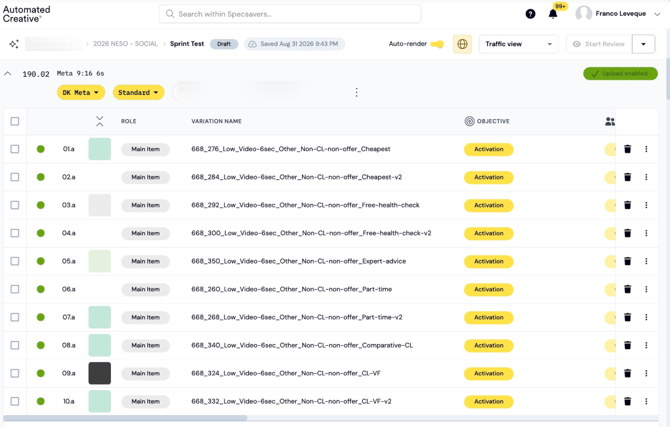
NOTE: Each Matrix can only have one platform selected (Meta, Snapchat, Pinterest, etc.) and one template, or a combination of manual uploads. If you need to create more ads with a different template, or a different size configuration for manual uploads (for example, Matrix 1 covers 1x1 and 9x16 combined, but Matrix 2 needs 4x5 and 9x16), you'll need to create a new Matrix.
Step 2: Click "Add another matrix"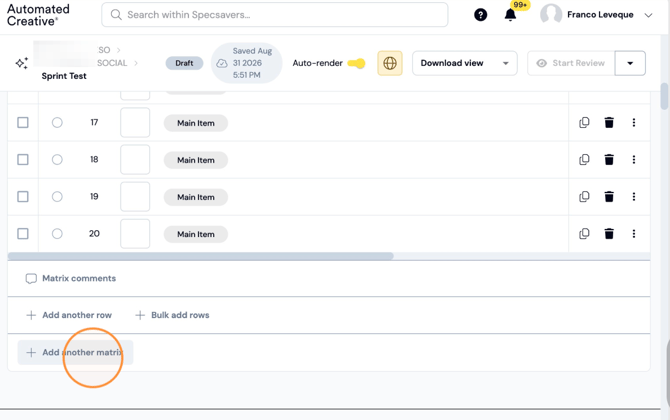
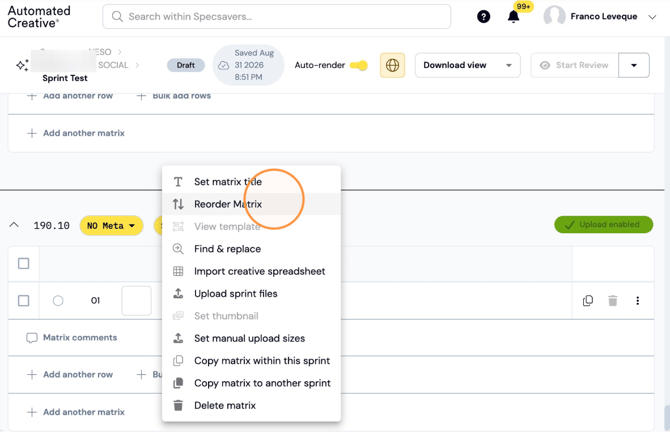
Step 3: Clicking "Add another Matrix" adds the new Matrix at the bottom, below the last one. You can reorder Matrices by clicking on this icon.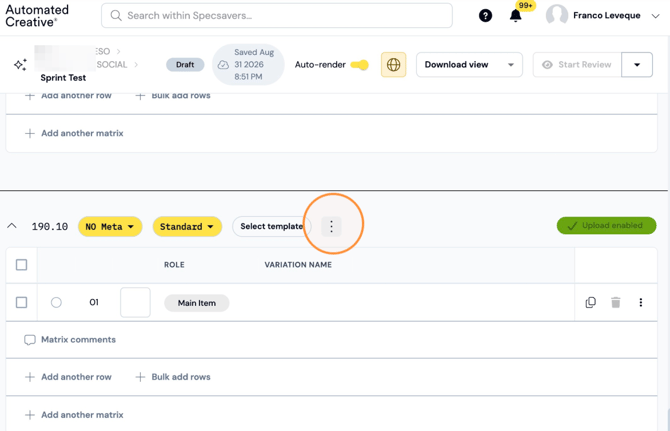
Step 4: Click "Reorder Matrix"
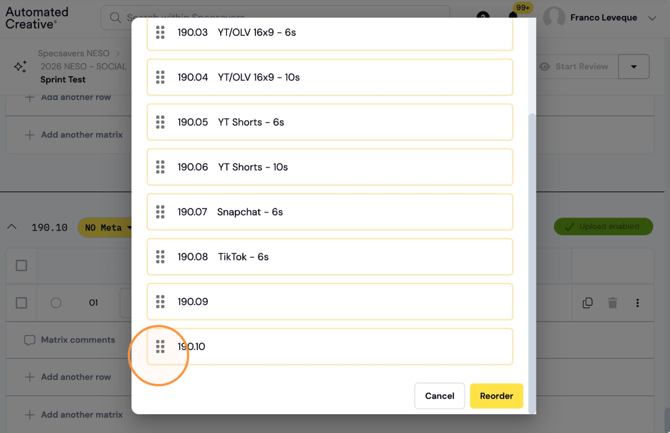
Step 5: Drag & drop to the preferred order.
Step 6: Click "Reorder". The matrix numbers will automatically update to the new order.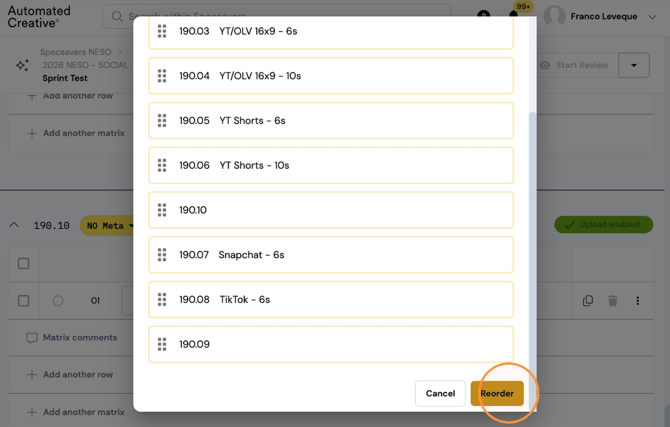
Tip! Naming your Matrix makes it easier to identify later. You can use the platform name, the type of ads you'll create in it, or whatever works best to keep you organized.
Step 7: Click this icon. 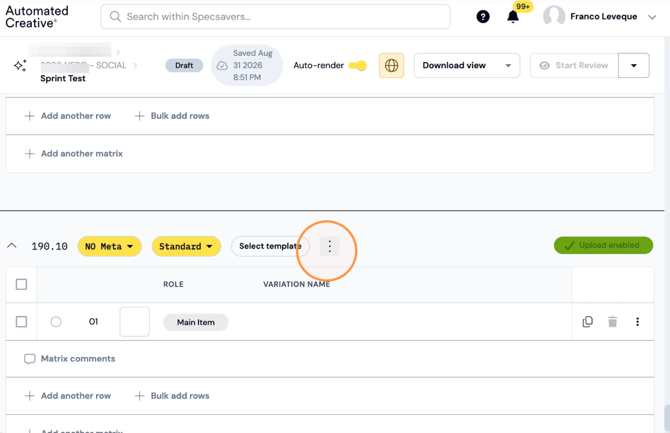
Step 8: Click "Set matrix title"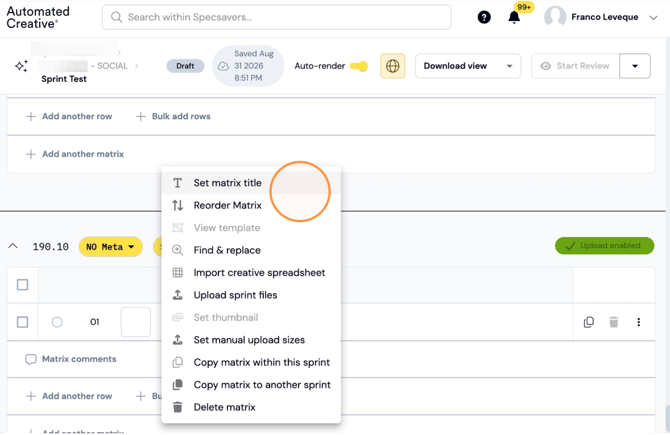
Step 9: Type the name you want and click "Update"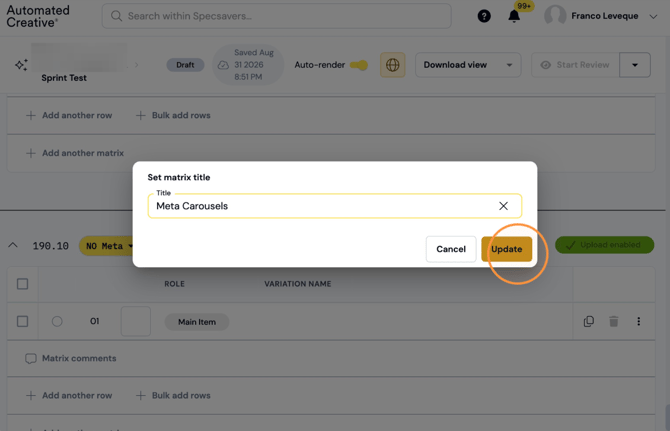
NOTE: You have to make sure your platform is set up before doing this step (covered in another guide).
Step 10: Click on the platform tab.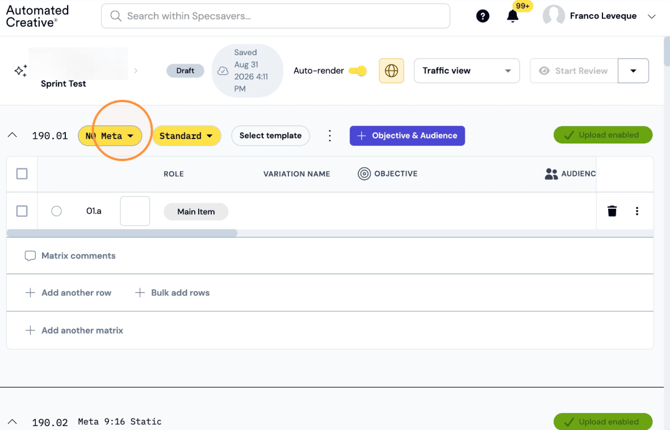
Step 11: Select the platform you want.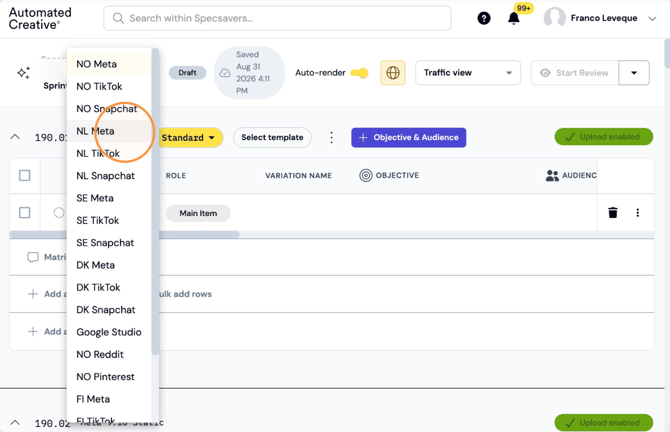
Tip! Select the template you'll be using to create your ads within your matrix. Remember that if you have to use more than one template you need to create another matrix.
Step 12: Click "Select Template"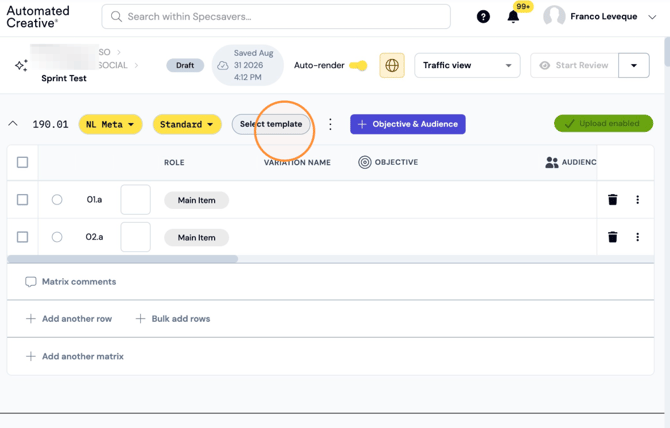
Step 13: Select one template from the library.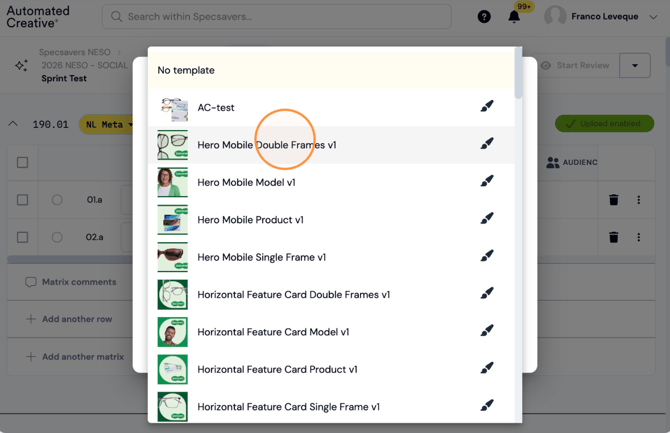
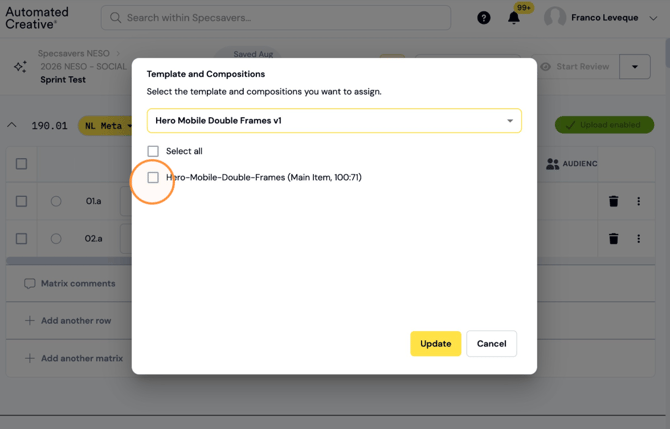
Step 14: Select the sizes you want to build for that template (depending on how the template is built you'll have more or less sizes available).
Step 15: Click "Update"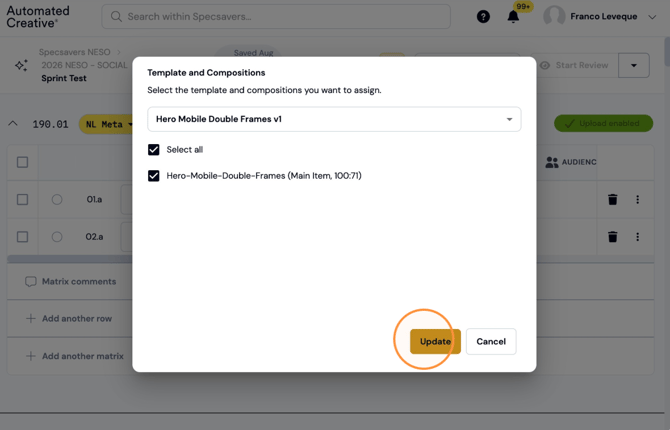
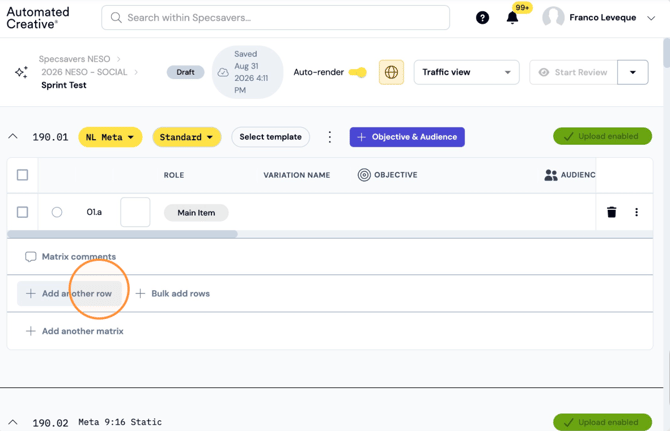
Tip! Each row on a Matrix holds all the information for one ad (asset, variables, trafficking details, tags, etc). You'll need to add as many rows as ads you want to create.
Step 16: Click "add another row"
Step 17: Or click "Bulk add rows" if you want to create multiple rows at once.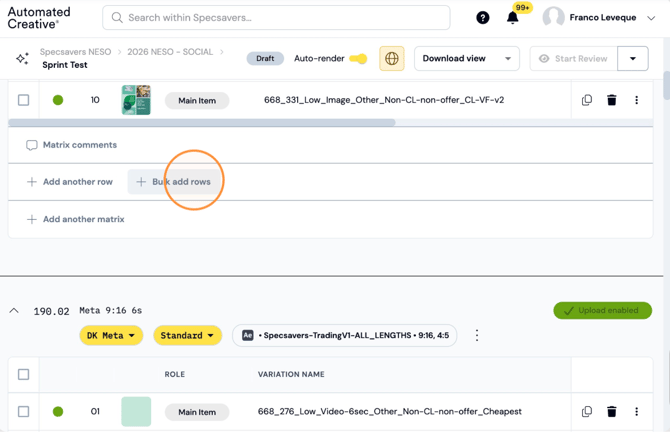
Step 18: Select the number of rows you want to add at once.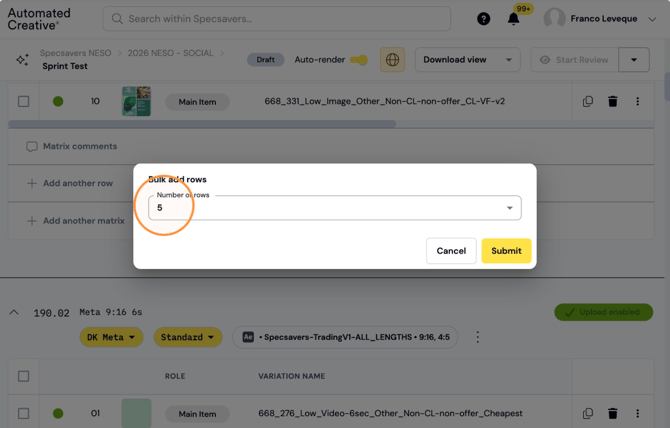
Step 19: Click "Submit"
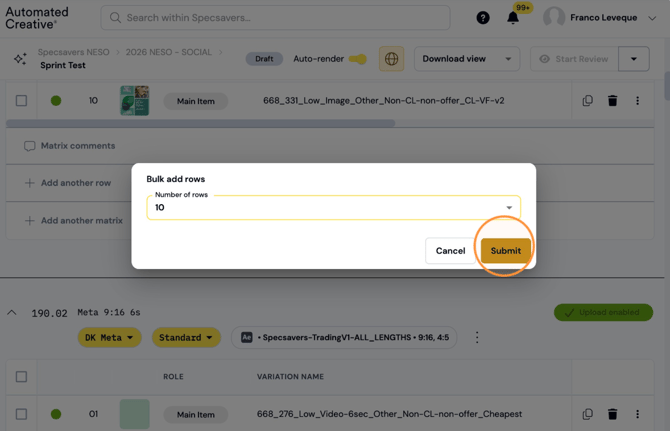
Step 20: Start filling in all the necessary information on the empty rows.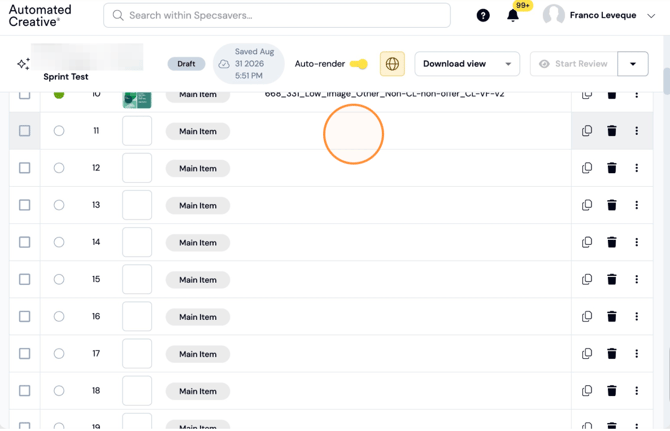
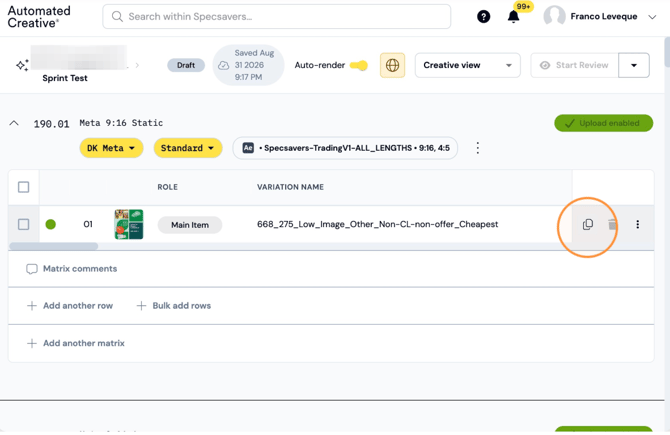
Tip! Duplicating a row is useful when you need to create an ad similar to one you've already created. All the information you've already filled in (variables, traffic, tags, etc.) is kept, so you can just change the specific thing you need without having to fill everything out again.
Step 21: Click this icon. It will automatically duplicate your row. If you have more than one ad, the duplicated ad will appear at the bottom, below the last one.
Step 22: Rename your variations to make it clear that it is a different version.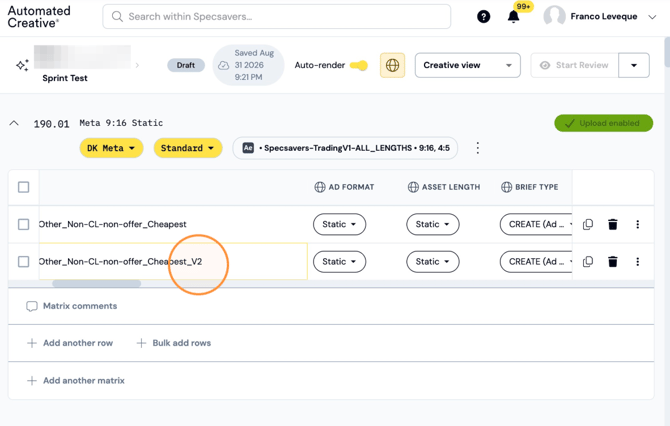
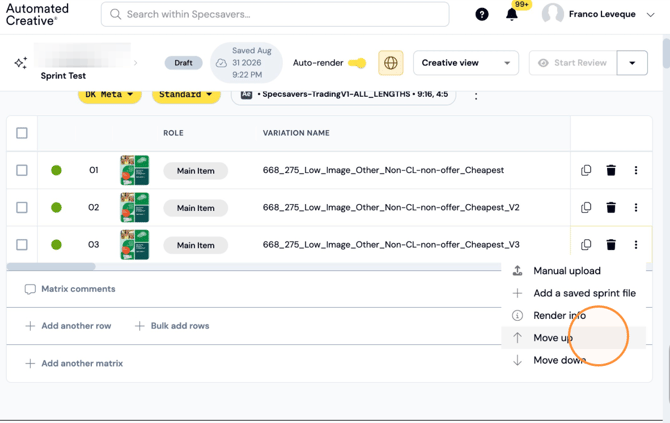
Step 23: You can also reorder the rows on a matrix. Click on this icon while on "Creative View".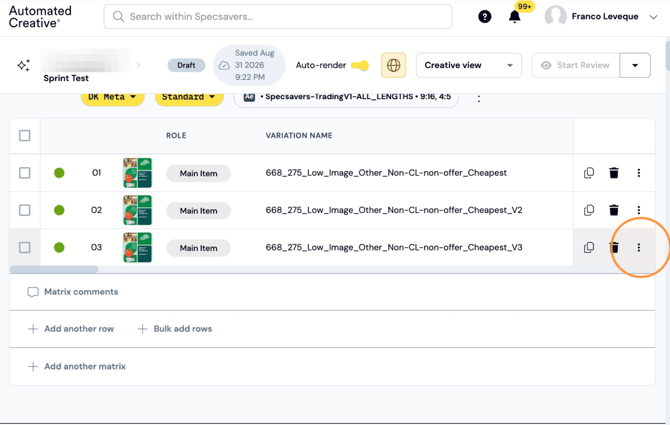
Step 24: Click "Move up" or "move down" depending on your needs.
Step 25: Rename as preferred.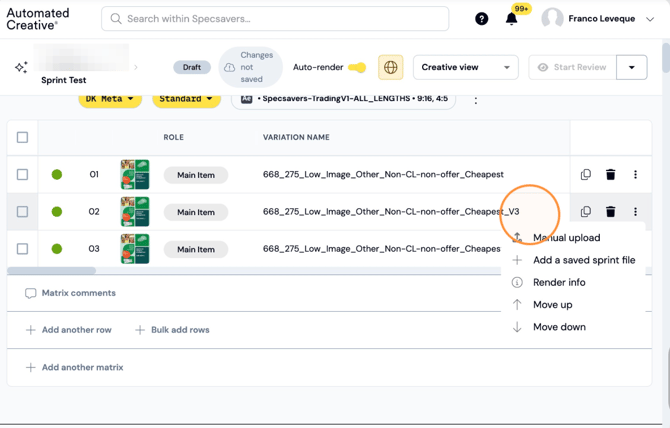
Tip! Right-click on any field to copy its information down to more rows or all your Matrices. This works across all fields in a Matrix — tags, traffic info, and creative variables.
Step 26: Right-click on the field you want to copy.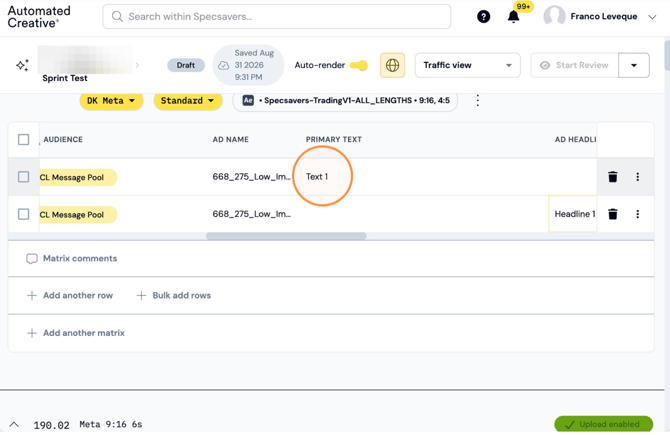
NOTE: Copy down in this ad: duplicates the information within the same ad (example a row with multiple audiences selected).
Copy down in the matrix: will copy the same information to all the ads below the one you are selecting within the same matrix.
Copy to all in matrix: similar as above but copies the information to all the ads, doesn't matter if they are above or below.
Copy to all in matrices: will copy the same information to all your ads in all your matrices.
Step 27: "Copy down in this matrix" example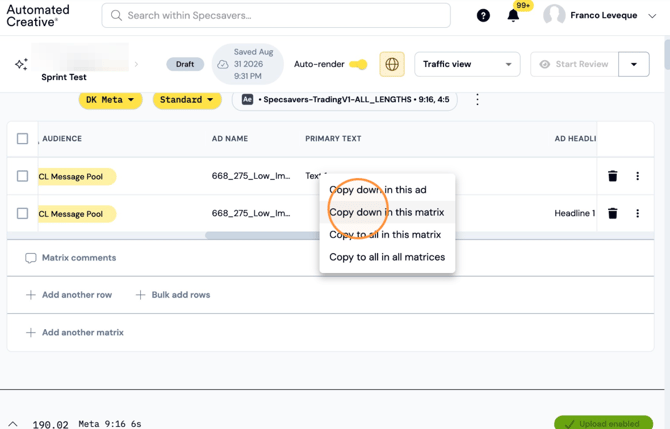
Step 28: Duplicated text example.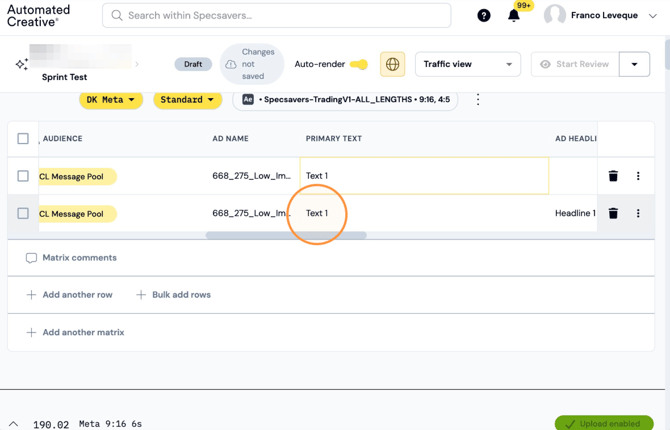
Tip! You can also delete information quickly if you right click on an empty field and then copy down to the rows below.
Step 29: Right-click here.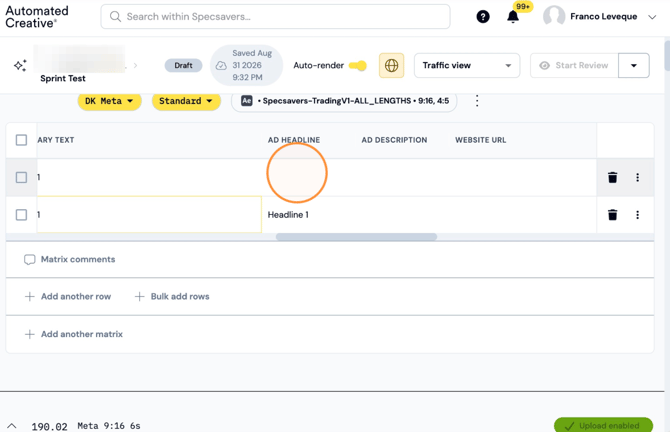
Step 30: Click "Copy down in this matrix"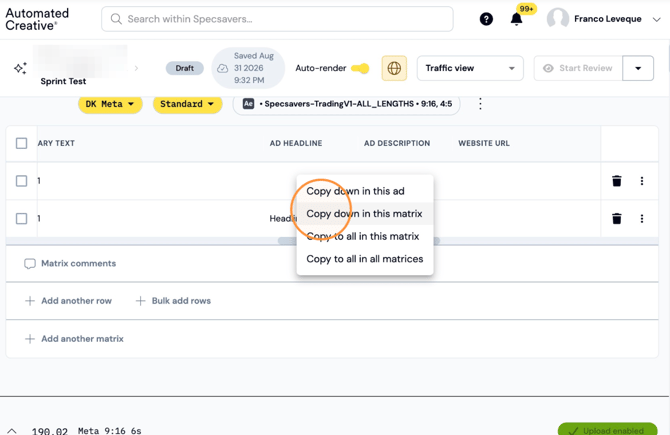
Step 31: Deleted copy.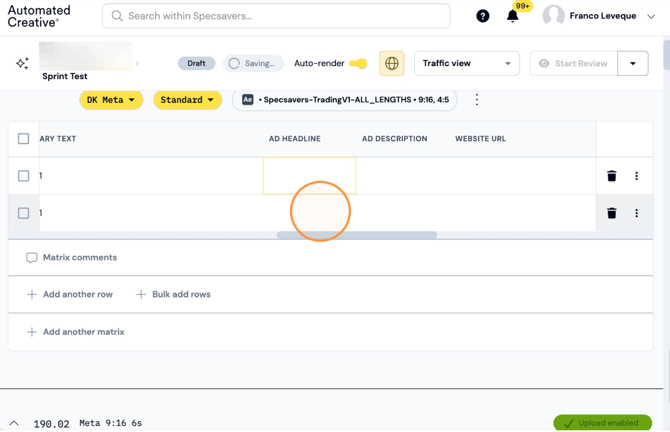
Note: Be careful when using it to delete info as you might delete more information that you need if you click on the wrong field.
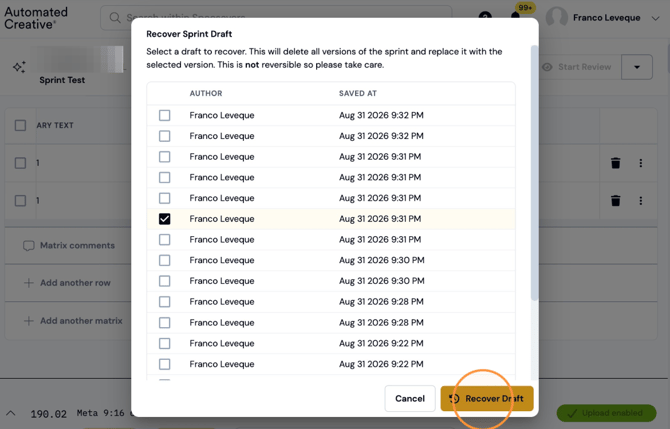
Recover Draft:
If you made a mistake or want to go back, you can always recover a previous draft. Drafts are automatically saved each time you make any changes to a sprint.
Step 32: Click this icon.
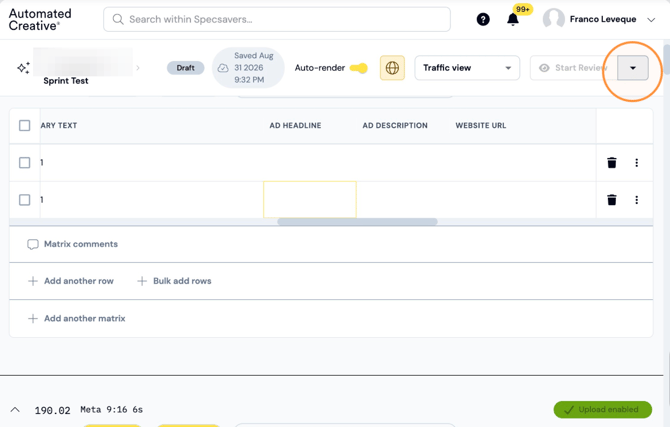
Step 33: Click "Recover Draft"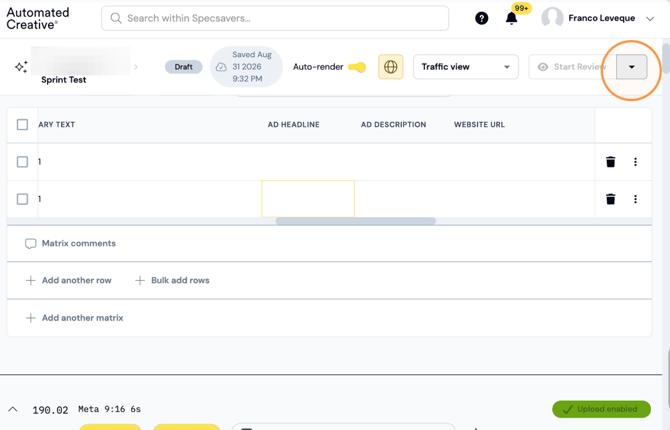
Step 34: Select the version you want.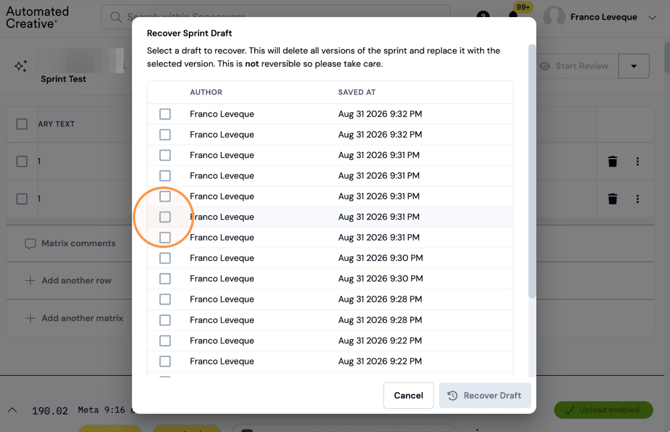
Step 35: Click "Recover Draft"